

Search K
Appearance
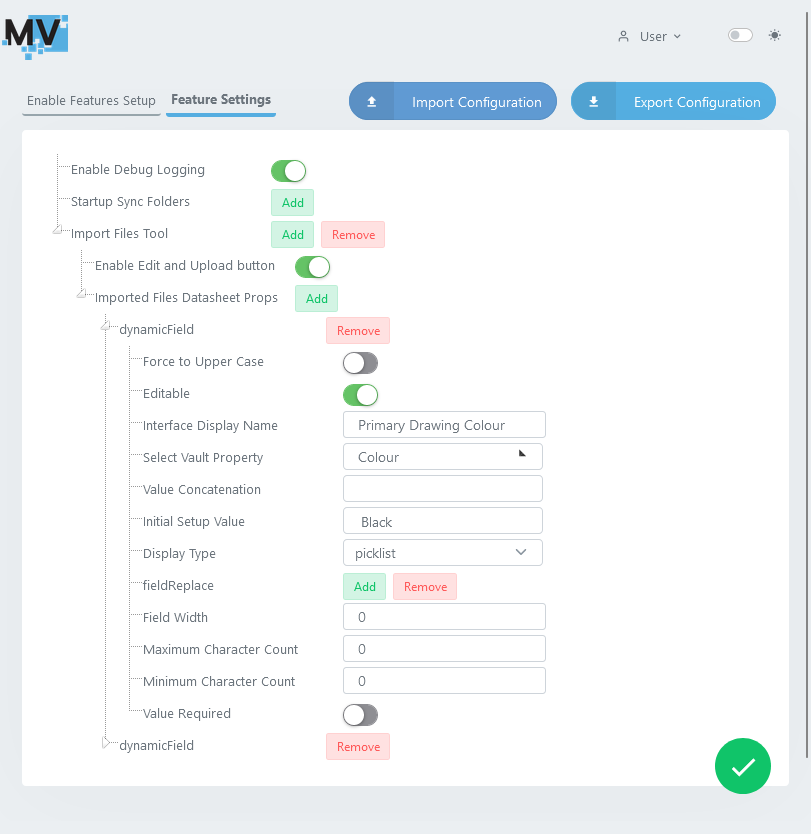
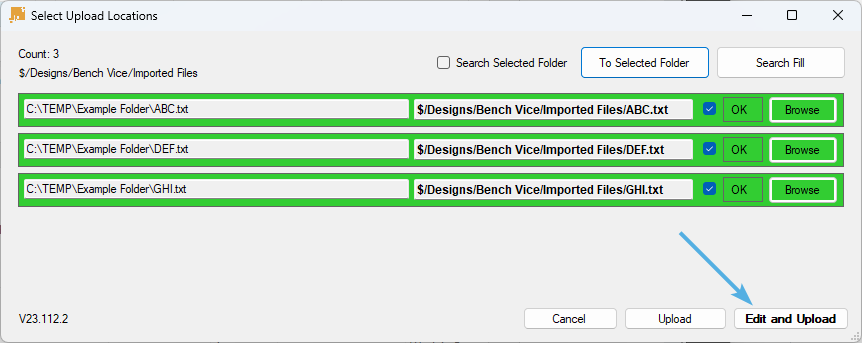
Enables the Edit and Upload button in the lower right corner of the Select Upload Locations menu.
Note
The "Edit and Upload" button only becomes selectable after either To Selected Folder or Search Fill has been selected.
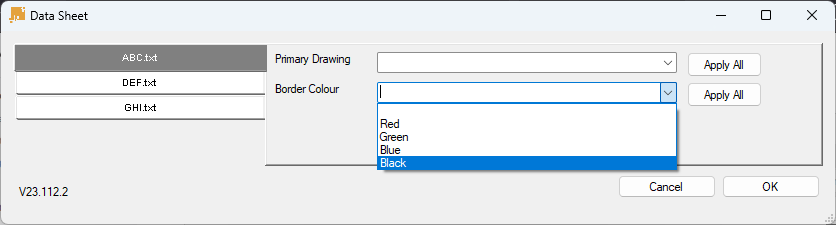
Enabling Edit and Upload allows the user to configure their uploaded file properties via the Data Sheet page which are then applied to the files after they're checked into Vault.
Create and configure a new Dynamic Field that allows for user input data to be applied to a Vault Property during file importation.
Sets the input value of the Vault Property to be uppercase.
Enables the user to update the value of the Vault Property.
The label of the field displayed in the Data Sheet.
Select the Vault Property to be mapped to the field value.
Allows the Data Sheet dynamic field to behave as a pick list. Note that the mapped Vault property must have