

Search K
Appearance
Reads, adds, updates, and removes lines on an Assembly BOM in Microsoft Business Central.
Use this task to interact with Assembly BOM data in Business Central as part of an automated workflow. You can retrieve all lines for a parent item, add new component lines, update quantities and other properties on existing lines, or remove individual lines. The four operations work together — for example, a workflow might get the current BOM, make targeted updates, then write back changed lines.
Business Central setup required
This task requires two setup steps before it will work:
Business Central's standard REST API does not expose assembly BOM data. To make it available, you must publish the Assembly BOM page as a web service in BC. This is a one-time step per BC environment.
Page.Assembly_BOM.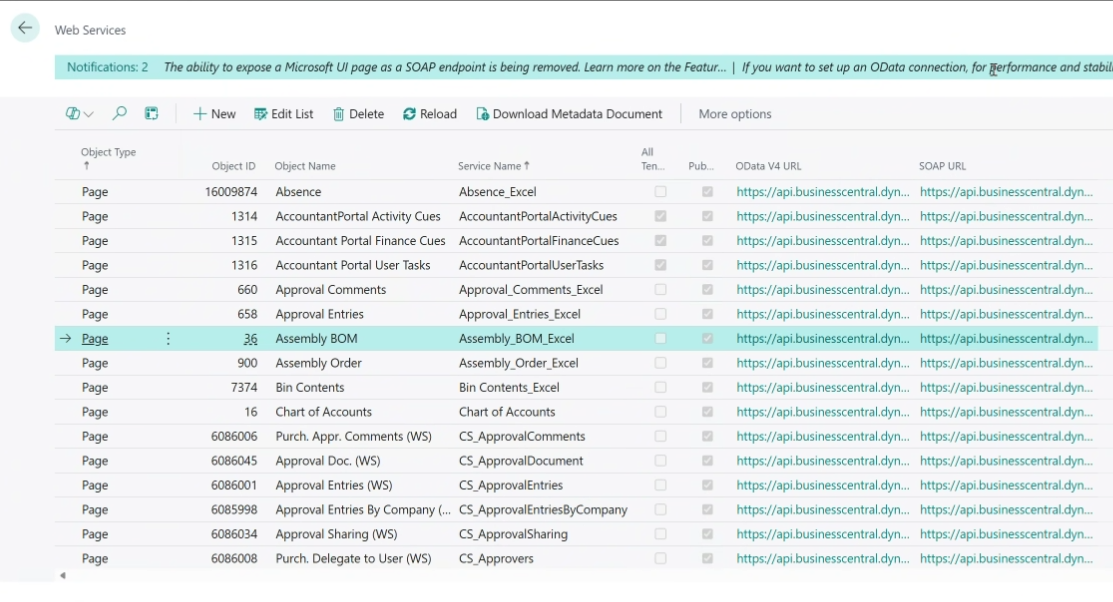
Naming
The service name you choose here is what you enter in the BOM Web Service field on the task. It is case-sensitive and must match exactly. Using a consistent name across all BC environments (e.g. always Assembly_BOM) will simplify workflow configuration.
Once published, the web service exposes BOM data at a URL in the form:
.../ODataV4/Company('{Company Name}')/Assembly_BOMMinuteView constructs this URL automatically — you only need to supply the company and service name.
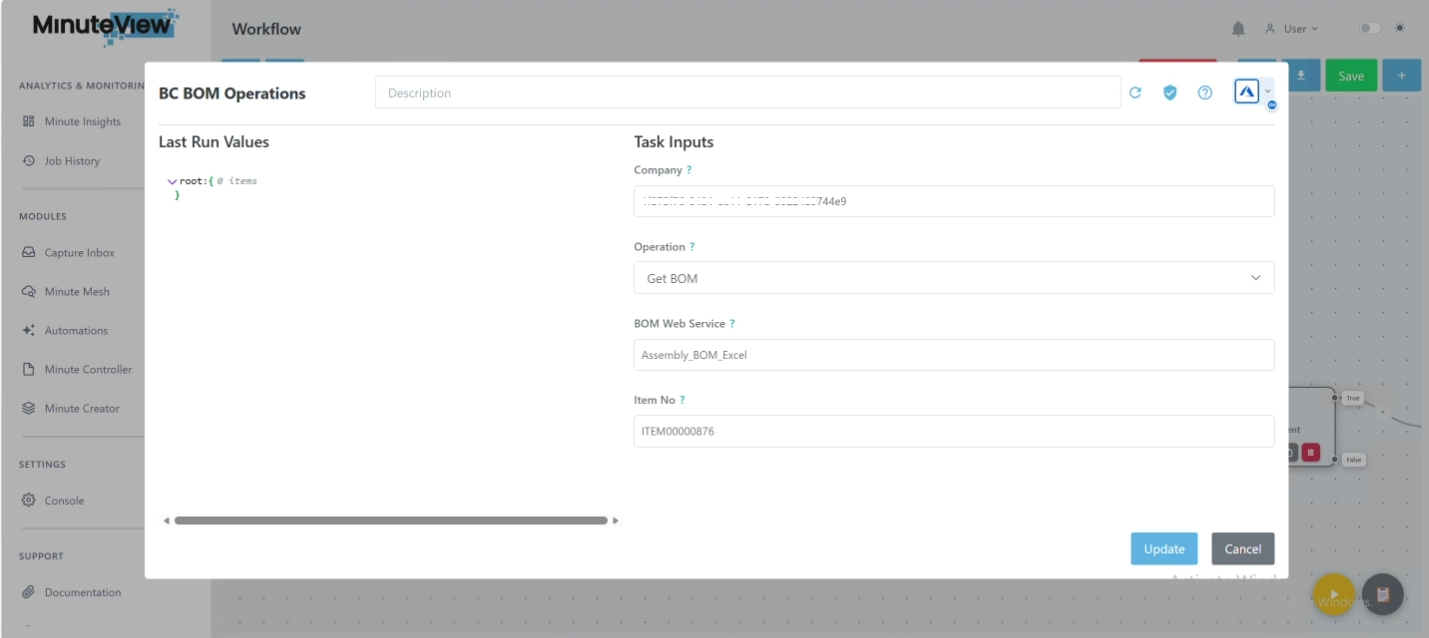
| Field | Type | Required | Visible for |
|---|---|---|---|
| Company | Text | Yes | All operations |
| Operation | Dropdown | Yes | All operations |
| BOM Web Service | Text | Yes | All operations |
| Item No | Text | Yes | All operations |
| Component No | Text | Yes | Delete BOM Line |
| BOM Lines | Object List | Yes | Add BOM Line, Update BOM |
Company accepts either the Business Central company display name (e.g. Minetek Pty Ltd) or its GUID. MinuteView resolves either form automatically.
BOM Web Service must match the Service Name entered in BC's Web Services page exactly, including capitalisation.
Retrieves all component lines for the specified parent item.
Returns Found as true if the item has BOM lines, false if not. If found, also returns a BOM Lines list with all component data.
Appends one or more new component lines to the item's BOM. Each entry in the BOM Lines list becomes a new line. Existing lines are not affected.
BOM Lines fields:
| Field | Required | Description |
|---|---|---|
| Component No | Yes | Item number of the component to add. |
| Quantity | Yes | Quantity required per assembly. Must be greater than zero. |
| Unit of Measure | No | UOM code (e.g. PCS, EA). Defaults to the component item's base UOM if left blank. |
| Position | No | Optional position or reference designator. |
| Type | No | BOM line type. Defaults to Item if left blank. Other valid values: Resource, Text. |
Updates existing component lines and adds any new ones. Lines not included in the input are left untouched.
Matching is done by Component No. For each entry in the BOM Lines list:
Uses the same BOM Lines fields as Add BOM Line above.
Updating a single line
To update the quantity on one component without affecting the rest of the BOM, include only that component in the BOM Lines list. All other lines will remain as they are.
Removes a single component line from the BOM. Provide the parent Item No and the Component No of the line to remove. All other lines are unchanged.
| Name | Available when | Description |
|---|---|---|
| Found | Get BOM | true if the item has BOM lines, false if not. |
| BOM Lines | Get BOM, Add BOM Line, Update BOM | The BOM line records. Each line includes the fields below. |
BOM Lines record fields:
| Field | Description |
|---|---|
| Parent_Item_No | The parent assembly item number. |
| Line_No | The line sequence number assigned by Business Central. |
| Type | The line type (Item, Resource, Text). |
| No | The component item number. |
| Description | The component description. |
| Quantity_per | The quantity required per assembly. |
| Unit_of_Measure_Code | The unit of measure code. |
| Position | Position or reference designator, if set. |
| Assembly_BOM | true if the component item itself also has a BOM. |