

Search K
Appearance
This guide walks you through installing and configuring MinuteView Server on a Windows Server environment.
Hosting model — no IIS required
MinuteView Server is self-hosted. The installer deploys it as a Windows service (MinuteViewServer) that runs its own web server (Kestrel) and listens on a fixed port. It does not run inside IIS, and it does not require the .NET Hosting Bundle or ASP.NET Core Module — the .NET runtime is bundled inside the installer. To run MinuteView over HTTPS, see SSL / HTTPS Configuration.
Before beginning installation, ensure the following components are installed and configured.
| Component | Minimum | Recommended |
|---|---|---|
| CPU | 4-core processor | 8-core processor or better |
| RAM | 8 GB | 16 GB |
| Available disk space | 100 GB | 200 GB or more |
| Network | 1 Gbps LAN | 1 Gbps LAN |
Running MinuteView Automations on the same server?
If you plan to run MinuteView Automations on the same machine, increase the recommended RAM to 32 GB. Automation workers process tasks concurrently and benefit significantly from additional memory — particularly if integrations such as Elasticsearch, Autodesk ACC, or SharePoint are in use.
| Version | |
|---|---|
| Minimum | Windows Server 2019 |
| Recommended | Windows Server 2022 or Windows Server 2025 |
Windows Server 2016
Windows Server 2016 has reached end-of-mainstream-support and is no longer a supported target for MinuteView. Installations on Windows Server 2016 are not tested and are not recommended.
MinuteView Server runs as a self-hosted Windows service — you do not need to install or configure IIS.
Already running Autodesk Vault on this server?
If this server already runs Autodesk Vault (which uses IIS on port 443), MinuteView's own web server cannot also take port 443. The SSL / HTTPS Configuration guide explains how to run both side by side.
A Microsoft SQL Server instance must already be installed.
| Version | |
|---|---|
| Minimum | SQL Server 2019 |
| Recommended | SQL Server 2022 or SQL Server 2025 |
Supported editions:
You will require:
localhost\SQLEXPRESS)MinuteView Server communicates with the following external endpoint:
| Host | Purpose |
|---|---|
licensing.tentechportal.com | License validation and basic product telemetry |
Firewall configuration: Outbound HTTPS (port 443) to licensing.tentechportal.com must be permitted from the server running MinuteView.
What data is transmitted?
MinuteView sends basic, non-identifiable telemetry to licensing.tentechportal.com — for example, which features are active and software version in use. No user data, personal information, or identifiable content is ever transmitted. This connection is also used to validate your license on startup.
If your environment does not permit outbound internet access, contact Tentech to discuss offline licensing options.
You will be provided with the MinuteView installation media directly by Tentech.
After installation, files will be located at:
C:\Program Files\Tentech\MinuteView ServerConfiguration is stored separately, in an encrypted file at:
C:\ProgramData\Tentech\MinuteView\MinuteViewServerConfig.datOnce installation is complete:
http://localhost:8770You will be automatically redirected to the Initial Setup Wizard.
The first launch will guide you through the configuration steps below. One of these — the Web Address step — is where you can optionally enable HTTPS by supplying an SSL certificate; see SSL / HTTPS Configuration for full details.
The setup wizard walks you through all critical configuration steps needed to get MinuteView operational.
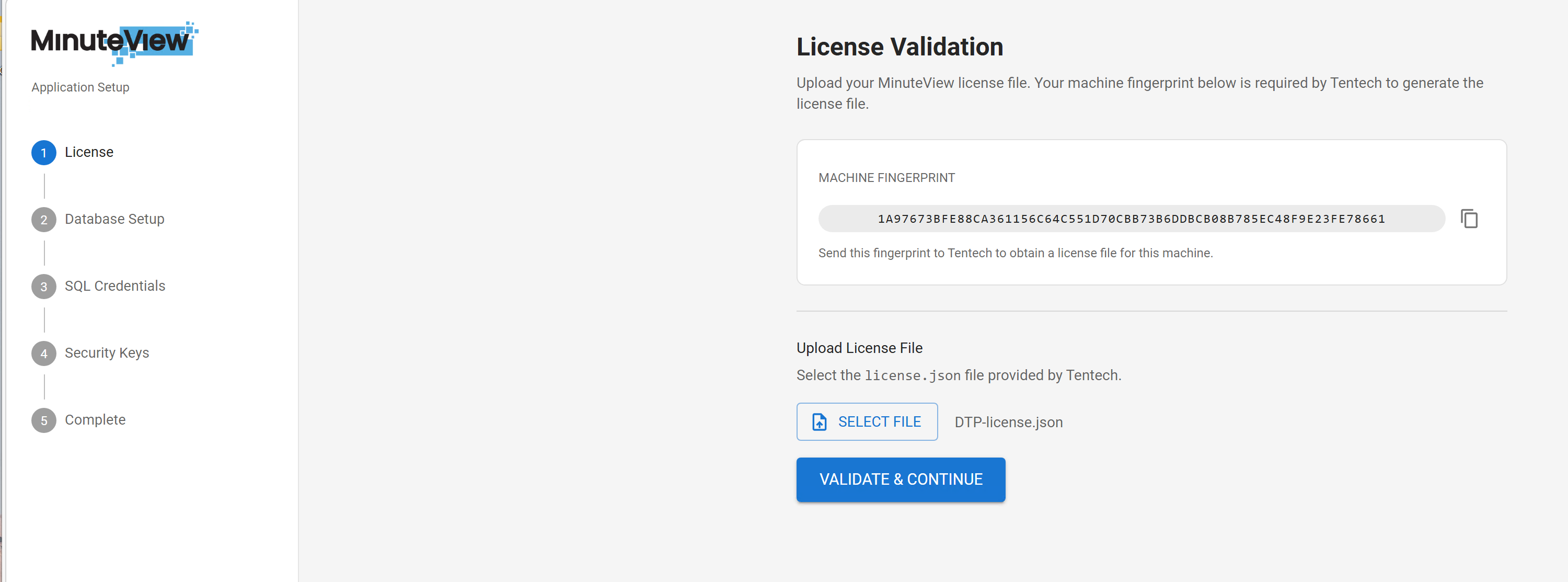
During setup, the system will display a Machine Fingerprint.
MinuteView requires a SQL database.
You must provide:
The SQL account must:
Recommended Approach
Temporarily enable the sa account and set a secure password for initialization.
This will:
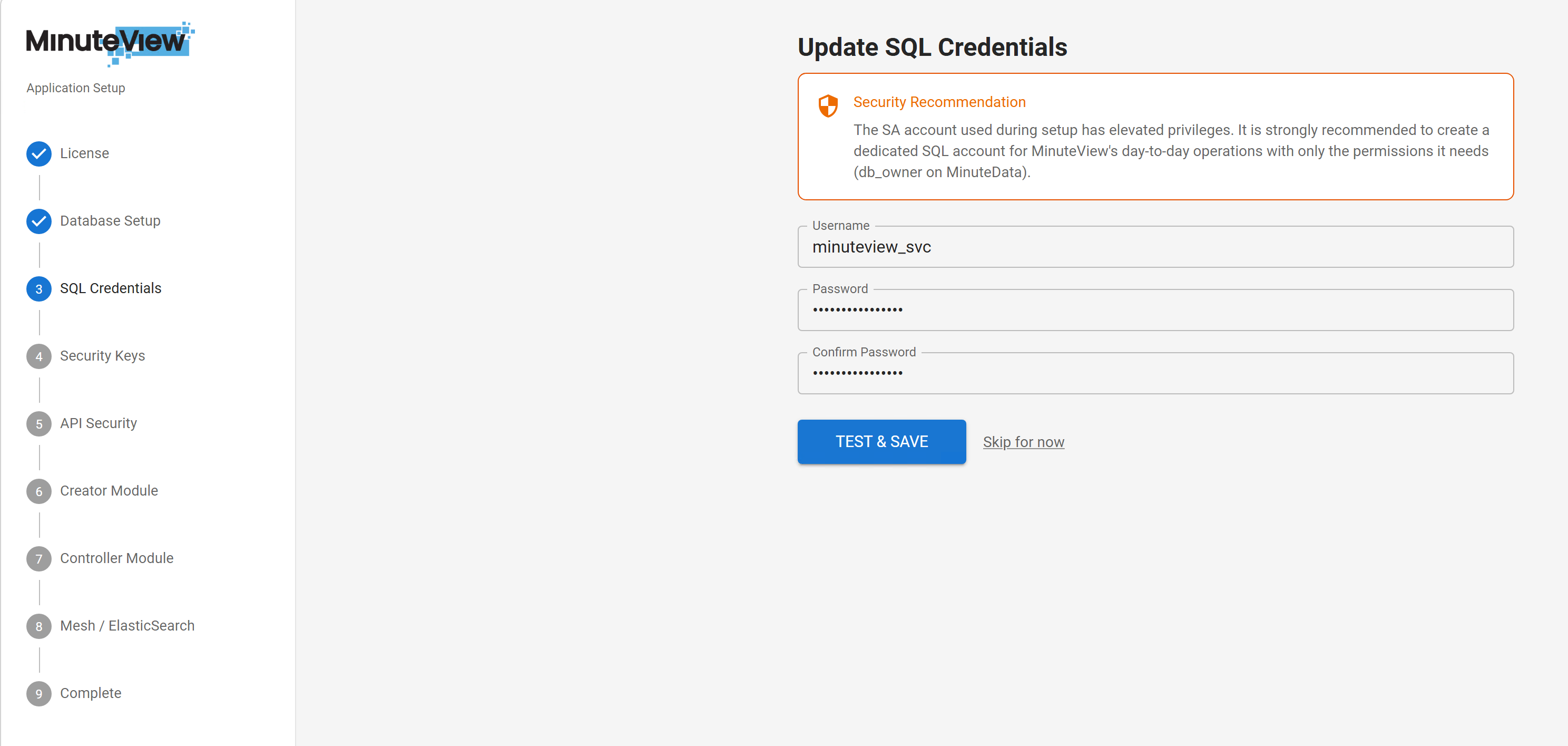
After successful initialization:
At this point:
sa account is no longer requiredsa for security reasons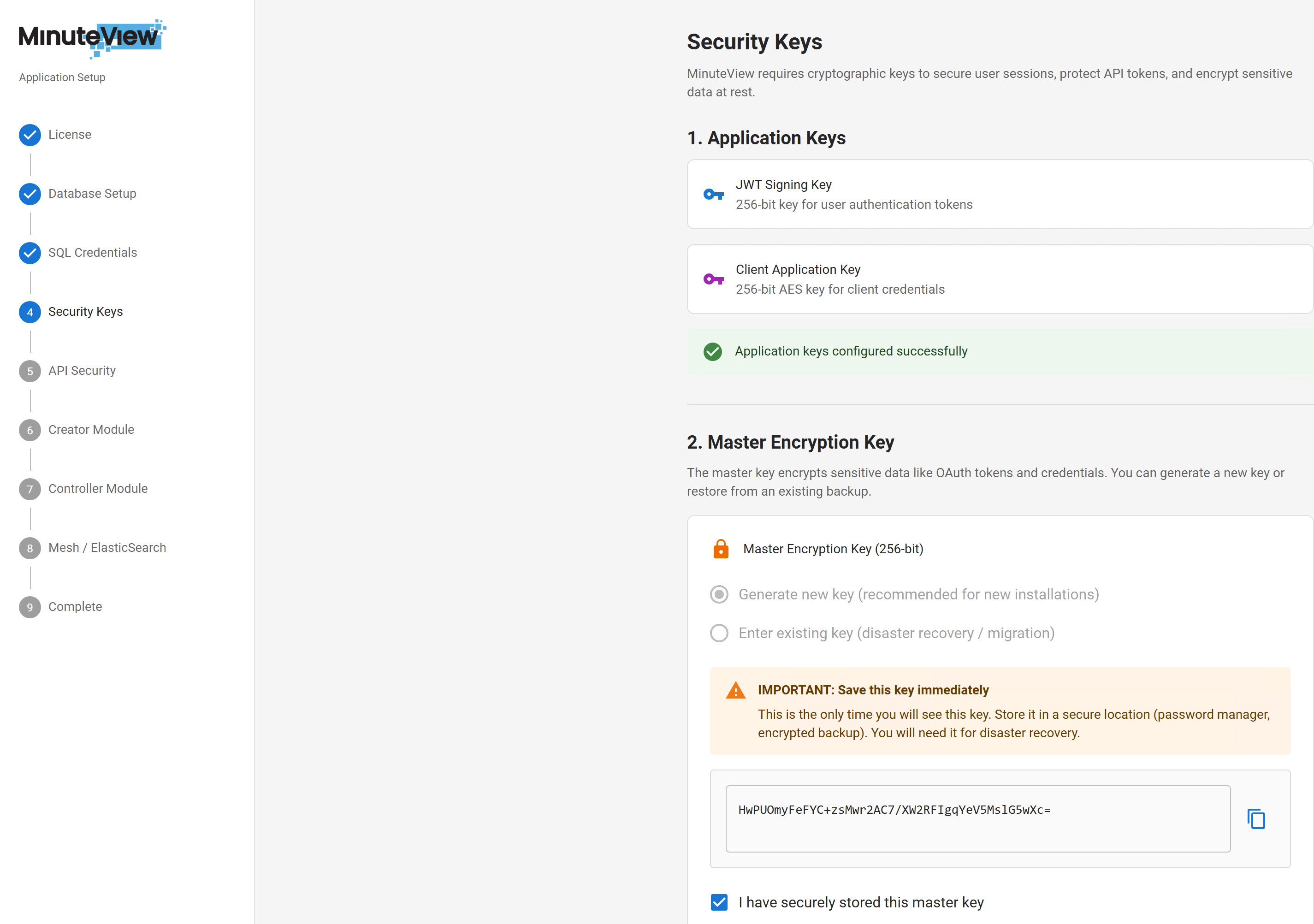
MinuteView uses multiple encryption keys.
The following keys are automatically generated:
These are used for:
The Master Encryption Key is used to encrypt sensitive database data.
Critical Information
This key is extremely important.
If you:
You must provide the original Master Encryption Key.
Without it:
Store this key securely.
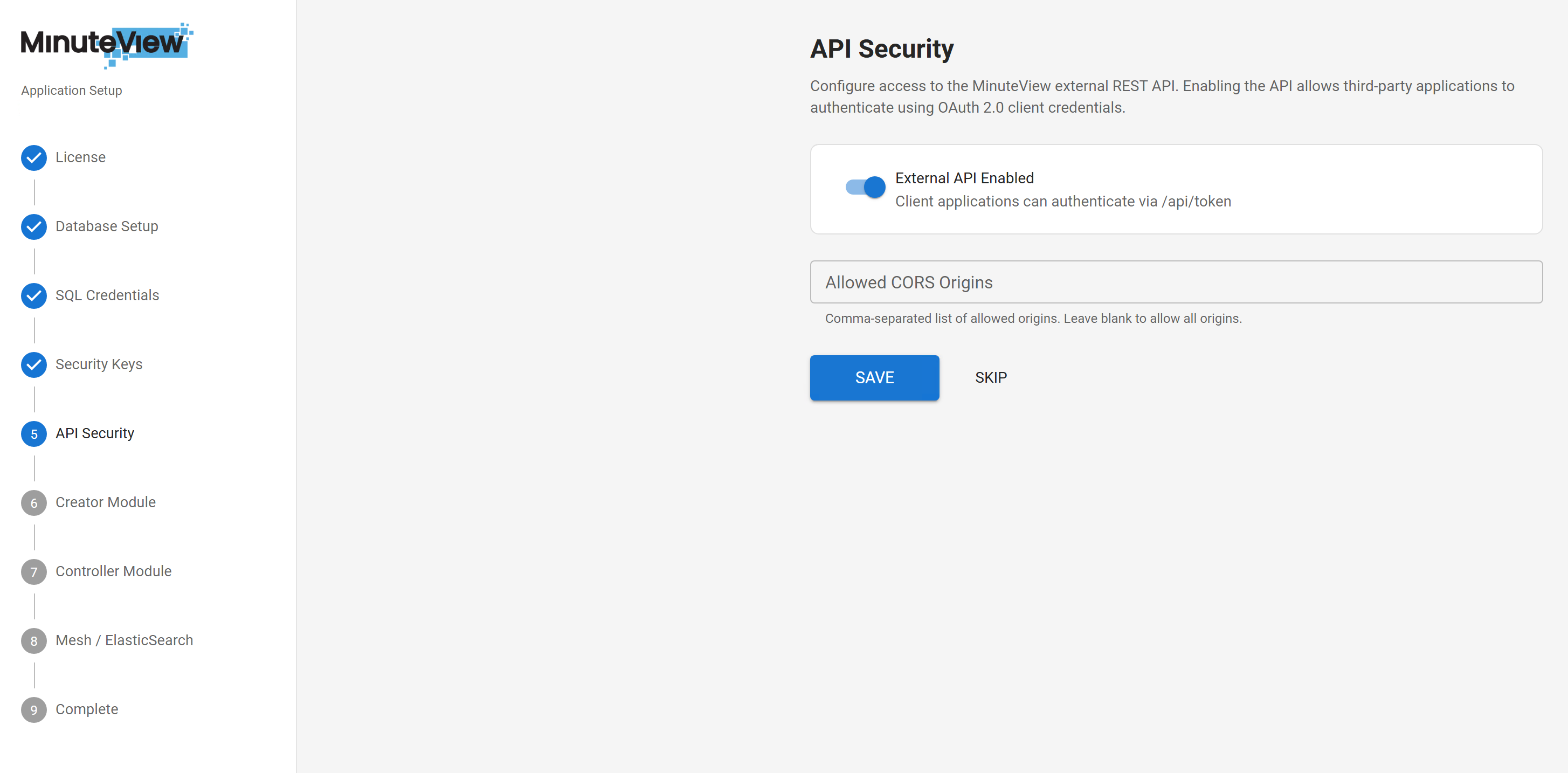
This step enables the internal API framework required for:
Enable this option to activate API endpoints.
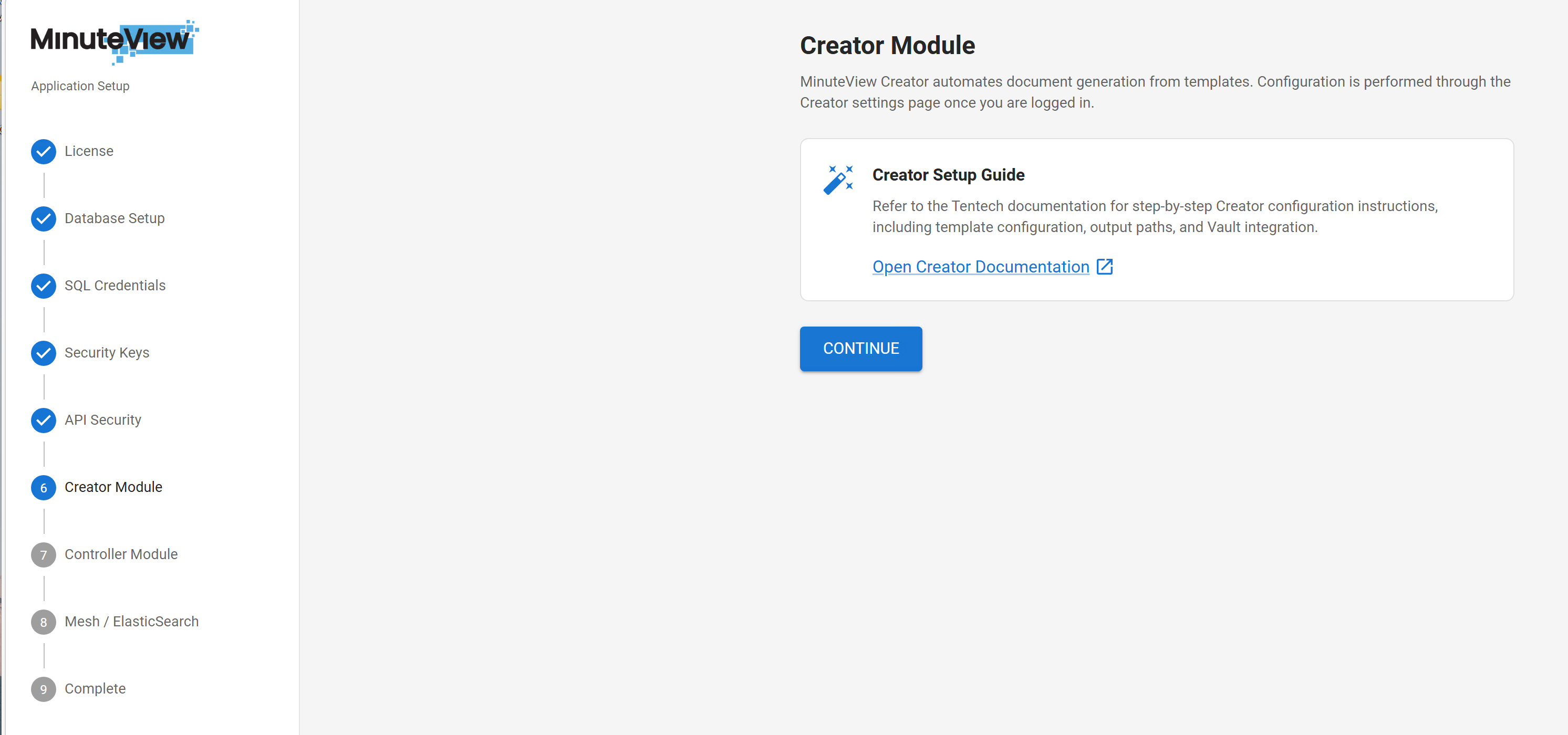
This step provides documentation for the Creator module.
No additional setup is required at this stage.
Refer to the Creator documentation for operational guidance.
This step provides documentation for the Controller module.
No setup is required during initial installation.
Refer to Controller documentation for configuration instructions.
Elasticsearch is optional.
However, it is required for:
If you do not require Mesh, this step may be skipped.
Because Elasticsearch installation may involve:
The browser may not have sufficient permissions to complete all actions automatically.
This is expected.
The wizard will guide you step-by-step through:
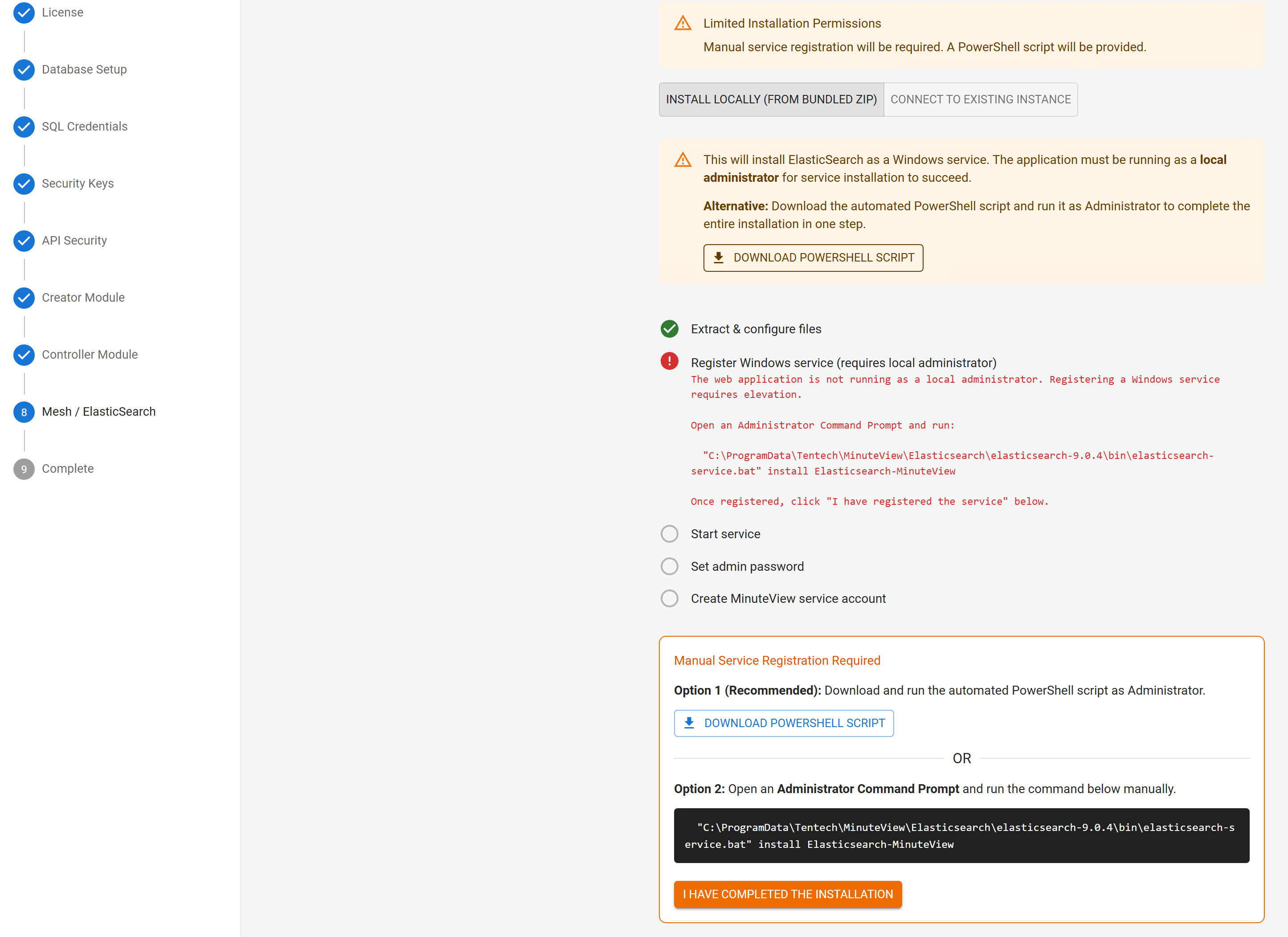
The wizard will guide you through extracting the Elasticsearch package to the appropriate directory.
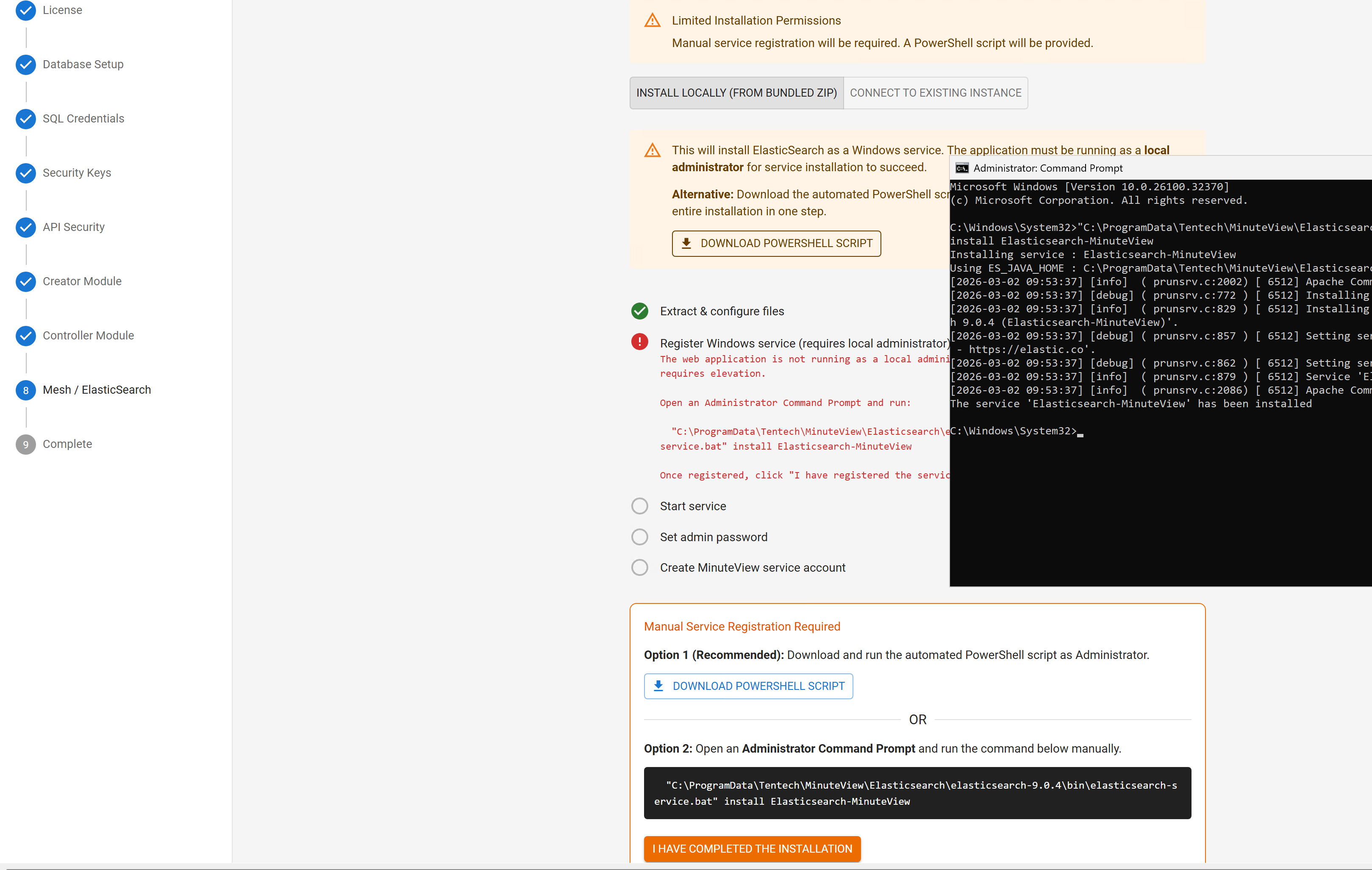
Follow the prompts to register Elasticsearch as a Windows Service.
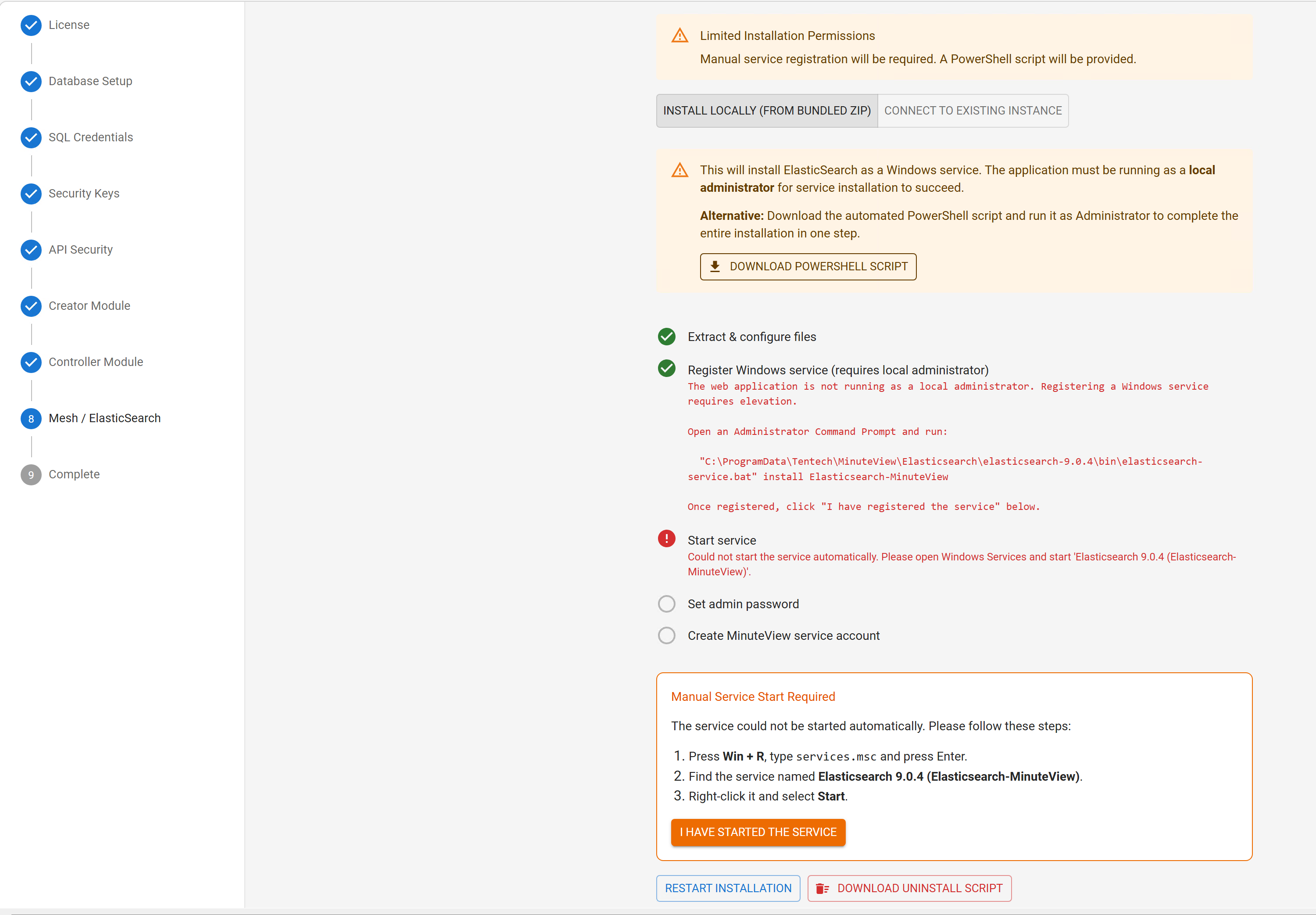
Start the Elasticsearch service via Windows Services or the wizard interface.
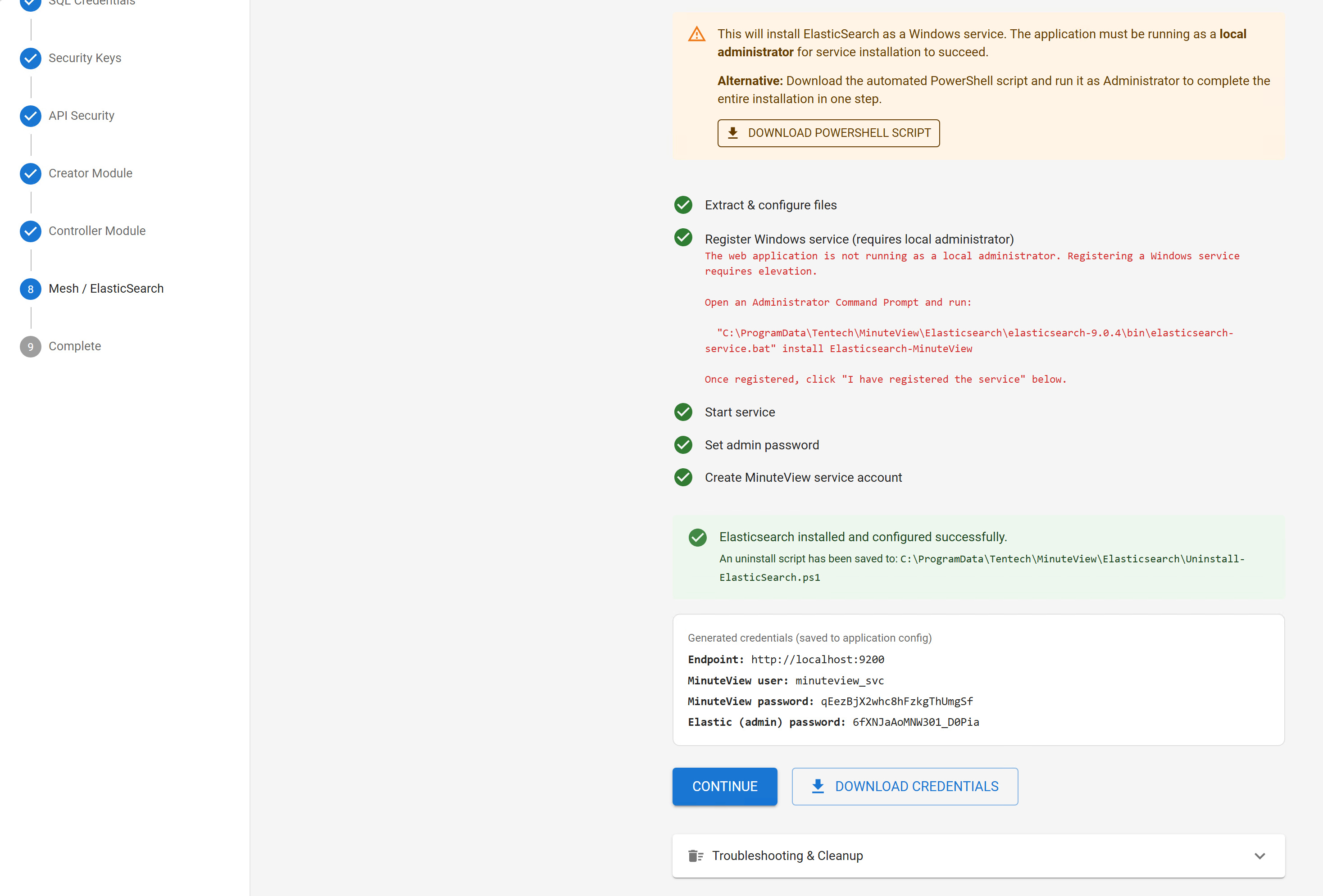
At completion:

The final step confirms that:
You will be given a one-time opportunity to download your configuration file.
This configuration file:
One-Time Download
This download may not be available again. Store it securely.
After completing the setup wizard, verify your installation:
services.msc)http://localhost:8770 (or your HTTPS address if you enabled it)After installation, implement these security best practices:
sa account if used during installationC:\ProgramData\Tentech\MinuteView\Logs)After successful installation:
Symptoms: Installer crashes or fails to complete
Solutions:
Symptoms: Browser cannot connect, or shows a connection error
Solutions:
services.msc) and confirm the MinuteViewServer service is Runninghttp://localhost:8770 (the app is served at the root, not under /MinuteView)C:\ProgramData\Tentech\MinuteView\LogsSymptoms: SQL connection errors during Step 2
Solutions:
sysadmin or dbcreator roleSymptoms: License file rejected during Step 1
Solutions:
Configuration Backup
Remember to securely store: