Skip to content

Capture Templates Overview ​

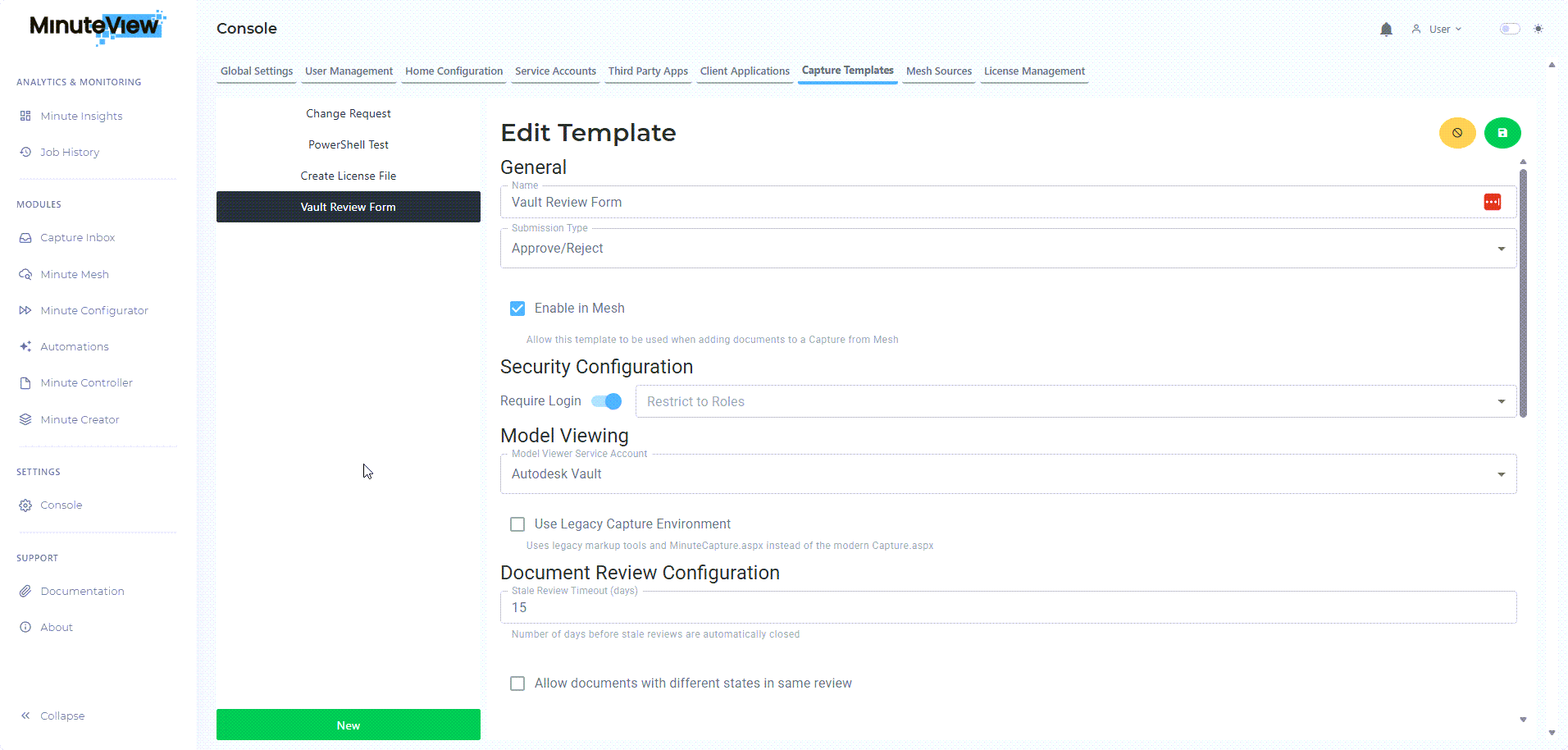
![Template Configuration](/images/m-capture/Capture-Template Configuration.png)

What are Capture Templates? ​

Capture Templates define how captures behave, who can access them, and what actions occur when a capture is submitted, approved, or rejected.

Think of templates as blueprints that control every aspect of the capture experience:

  • Submission behavior (Submit vs Approve/Reject)
  • Security and role access
  • Fields and metadata
  • Artifact association rules
  • Event handling and automation
  • User interface options

Where are Templates Managed? ​

All Capture Template configuration is performed in:

Console → Capture Templates

From this interface, administrators can:

  • Create new templates
  • Edit existing templates
  • Enable/disable templates
  • Configure all template settings

Key Template Components ​

1. Basic Configuration ​

Every template requires:

  • Name - Display name shown to users
  • Description - Purpose and usage guidance (optional but recommended)
  • Submission Type - Submit only, or Approve/Reject

2. Security ​

Controls who can:

  • Create captures from this template
  • View captures in their inbox
  • Approve or reject captures

Security is role-based and integrates with MinuteView's user management system.

3. Fields ​

Templates define which metadata fields are:

  • Displayed during capture creation
  • Required vs optional
  • Shown as columns in the inbox
  • Available for filtering and search

4. Artifact Rules ​

Determines how associated files are:

  • Added to captures
  • Validated for consistency
  • Displayed in the review environment
  • Monitored for changes (stale detection)

5. Integration Settings ​

Templates can be configured to:

  • Appear in Mesh for quick capture creation
  • Use specific capture environments (Legacy vs Modern)
  • Connect with external systems

6. Event Handlers ​

Automation that runs:

  • On Submit - When a capture is submitted
  • On Approve - When a capture is approved
  • On Reject - When a capture is rejected

Can be PowerShell scripts or MinuteView workflows.


Template Types by Use Case ​

Document Submission Template ​

Submission Type: Submit

Typical Configuration:

  • Simple fields (title, description, project)
  • Mesh integration enabled
  • Email notification on submit
  • No approval required

Use Cases:

  • Document transmittals
  • Information requests
  • Data collection forms

Review & Approval Template ​

Submission Type: Approve/Reject

Typical Configuration:

  • Detailed fields for review criteria
  • Model viewing enabled
  • Markup tools available
  • Different workflows for approve vs reject

Use Cases:

  • Engineering drawing reviews
  • Design approvals
  • Quality gate checkpoints

AI Validation Template ​

Submission Type: Approve/Reject

Typical Configuration:

  • Fields for AI confidence scores
  • System-triggered (not user-created)
  • Workflow integration for continue/retry logic
  • Minimal user interface (system-driven)

Use Cases:

  • Validating AI-generated outputs
  • Human-in-the-loop AI workflows
  • Quality assurance for automated processes

Template Lifecycle ​

1. Planning ​

Define requirements:

  • What process will this template support?
  • Who needs access?
  • What data must be captured?
  • What automation is needed?

2. Creation ​

Build the template in Console:

  • Configure basic settings
  • Set up security and roles
  • Add fields
  • Enable integrations

3. Testing ​

Validate configuration:

  • Create test captures
  • Verify user experience
  • Test event handlers
  • Confirm automation works correctly

4. Deployment ​

Enable for production use:

  • Assign to appropriate users
  • Document usage procedures
  • Train users if needed
  • Monitor initial usage

5. Maintenance ​

Ongoing management:

  • Adjust fields as requirements change
  • Update automation as processes evolve
  • Review usage patterns
  • Optimize performance

Best Practices ​

Naming Conventions ​

Use clear, descriptive names that indicate:

  • What the template is for
  • Who should use it
  • What process it supports

Good: "Engineering Drawing Review - External Approval" Bad: "Template 3" or "Review Form"

Start Simple ​

Begin with minimal configuration:

  • Basic fields only
  • Simple automation
  • Broad access

Add complexity based on actual usage patterns, not anticipated needs.

Security First ​

Plan role assignments carefully:

  • Who creates captures?
  • Who reviews them?
  • Who can see sensitive data?

Security changes can impact existing captures, so plan ahead.

Test Before Deployment ​

Always create test captures to verify:

  • Fields display correctly
  • Security works as expected
  • Automation triggers properly
  • User experience is smooth

Document Your Templates ​

Maintain documentation of:

  • Template purpose and usage
  • Field definitions and requirements
  • Automation behavior
  • Security and access control

Common Template Patterns ​

Pattern: Simple Submission ​

  • Submit type only
  • Minimal fields
  • Email notification
  • No complex automation

Pattern: Multi-Stage Review ​

  • Approve/Reject type
  • Multiple reviewers via workflows
  • State tracking through fields
  • Complex automation

Pattern: Workflow Integration ​

  • Created by automation (not users)
  • Minimal user interface
  • Workflow-driven lifecycle
  • System-to-system handoffs

Template Settings Reference ​

SettingPurposeOptions
Submission TypeHow captures are completedSubmit, Approve/Reject
Enable in MeshAllow creation from MeshYes/No
Capture EnvironmentUI version to useLegacy, Modern
Stale DaysWhen to mark captures as staleNumber of days
Model Viewing AccountService account for viewing filesService account selection

Next Steps ​

Now that you understand templates, learn how to create one:

Tentech