

Search K
Appearance
MinuteView uses a secure, token-based authentication system. Every user — and every connected tool — must authenticate before accessing any part of the platform.
Navigate to your MinuteView URL in any supported browser. You will be presented with the login page.
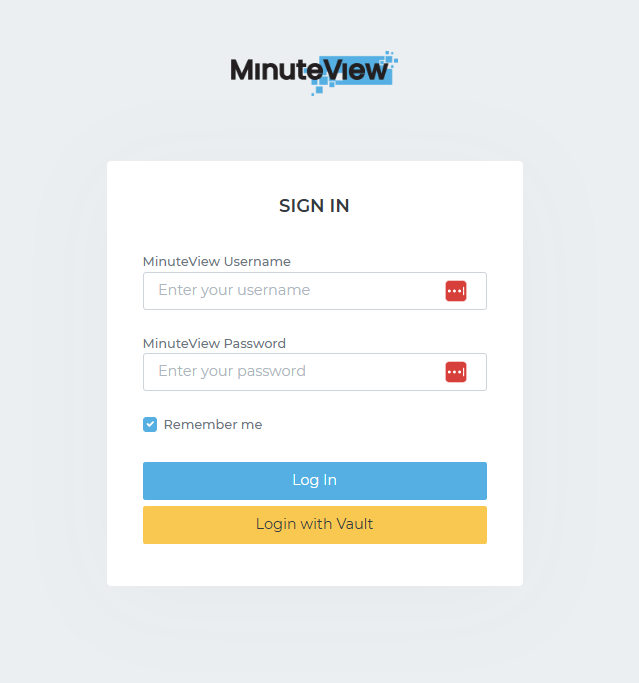
Enter your username and password and click Sign In. These credentials are created and managed by a MinuteView administrator — see User Management below.
Forgotten your password?
MinuteView does not have a self-service password reset. Contact your MinuteView administrator to have your password reset.
If your organisation uses the Autodesk Vault integration, a secondary login option may be available on the login page. This allows users with a Vault account to sign in using their Vault credentials. Your administrator will advise whether this option applies to your environment.
Once logged in, your session remains active for 24 hours from the time you signed in. This is an absolute duration — the session does not extend based on activity, and there is no "keep me logged in" option.
After 24 hours, MinuteView will prompt you to sign in again.
If you need to end your session early, use the Sign Out option from the user menu.
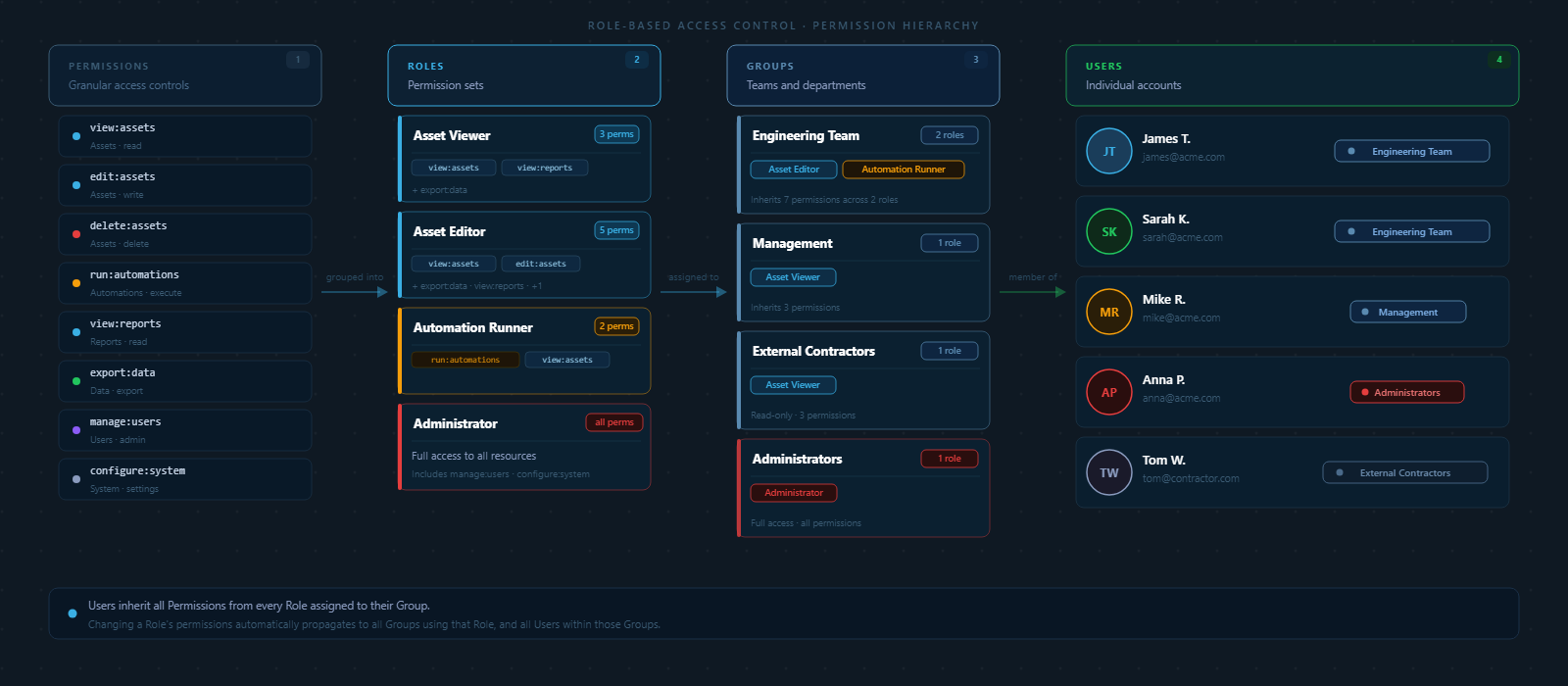
What a user can see and do in MinuteView is controlled by a three-level system: Permissions, Roles, and Groups.
| Level | What it is |
|---|---|
| Permission | A single capability — for example, Access Mesh or Modify Users. Permissions are predefined by the system. |
| Role | A named collection of permissions — for example, a Mesh User role might include Access Mesh. Roles are created by administrators. |
| Group | A collection of users. Roles are assigned to groups, which applies them to every member in that group. |
Roles can also be assigned directly to individual users without using a group.
In practice, the recommended approach is:
This keeps access management scalable — when someone joins or leaves a team, you update their group membership rather than reconfiguring their individual permissions.
For full details on creating users, roles, and groups, see User Management.
User accounts are created and managed by MinuteView administrators in Console → User Management.
Key things to know:
→ Go to User Management documentation
Connected tools — such as the Automations Engine, Minute Creator, and Minute Controller — authenticate with MinuteView as client applications rather than as individual users. This is a separate authentication path designed for service-to-service communication.
Each client application is registered in MinuteView and issued a Client ID and Client Secret. The application uses these credentials to obtain a short-lived access token (valid for 1 hour), which it then uses for all API communication with MinuteView. Tokens are refreshed automatically by the connected application — no manual intervention is required.
Client applications can be configured with:
Client applications are registered and managed in Console → Client Applications.
→ Go to Client Applications documentation