

Search K
Appearance
Use this guide to connect Microsoft 365 to MinuteView by creating an Azure app registration. This will let MinuteView workflows use your Microsoft account to:
⚠️ This setup is for Delegated (user sign-in) accounts. The account signs in once, and MinuteView securely stores a refresh token so it can keep working without you re-signing in.
Even though each user signs in through their own browser, the MinuteView server is what talks to Microsoft after the login. When the user is redirected back after signing in, the server exchanges the authorization code for a token by calling Microsoft directly — and from then on it silently refreshes that token in the background using the stored refresh token, with no browser involved. This means the MinuteView server must have outbound internet access to the following domains.
The following domains must be accessible via HTTPS (port 443) from the server where MinuteView is installed:
| Domain | Purpose |
|---|---|
login.microsoftonline.com | OAuth token exchange, background token refresh, and authorization |
graph.microsoft.com | Microsoft Graph API calls (SharePoint, OneDrive, Teams, mail, calendar, user profile, etc.) |
Server Access Required
These domains must be reachable from the server, not just from the user's PC. The user's browser only handles the initial sign-in. The token exchange, the ongoing refresh of expired tokens, and every subsequent Graph API call are all made server-side. If the server cannot reach these domains, the account will appear to sign in successfully in the browser but then fail with a connection error, or silently stop working once the first token expires.
If this account is also used for Business Central (the optional
Financials.ReadWrite.Allpermission above), the server additionally needs outbound access toapi.businesscentral.dynamics.com. The token itself is still issued bylogin.microsoftonline.com.
Go to the Azure Portal → App registrations → New registration.
Give it a name, e.g. MinuteView (Delegated).
Choose Supported account types:
Add a Redirect URI (type: Web):
https://your-domain/MinuteView/PageGeneral/ServiceCallback.aspxClick Register.
From the app’s Overview page, copy:
Then create a Client secret:
Go to API permissions → Add a permission → Microsoft Graph → Delegated permissions. Add:
Files.ReadWrite.AllSites.ReadWrite.AllMail.ReadMail.SendMail.Read.SharedChat.ReadWriteChannelMessage.SendTeamsActivity.SendUser.ReadBasic.AllPeople.ReadUser.ReadCalendars.ReadWriteFinancials.ReadWrite.All if required for Business Central Integrationopenidprofileemailoffline_access✅ Don’t forget to Grant admin consent so your users don’t get blocked.
In MinuteView, when adding a Microsoft OAuth account:
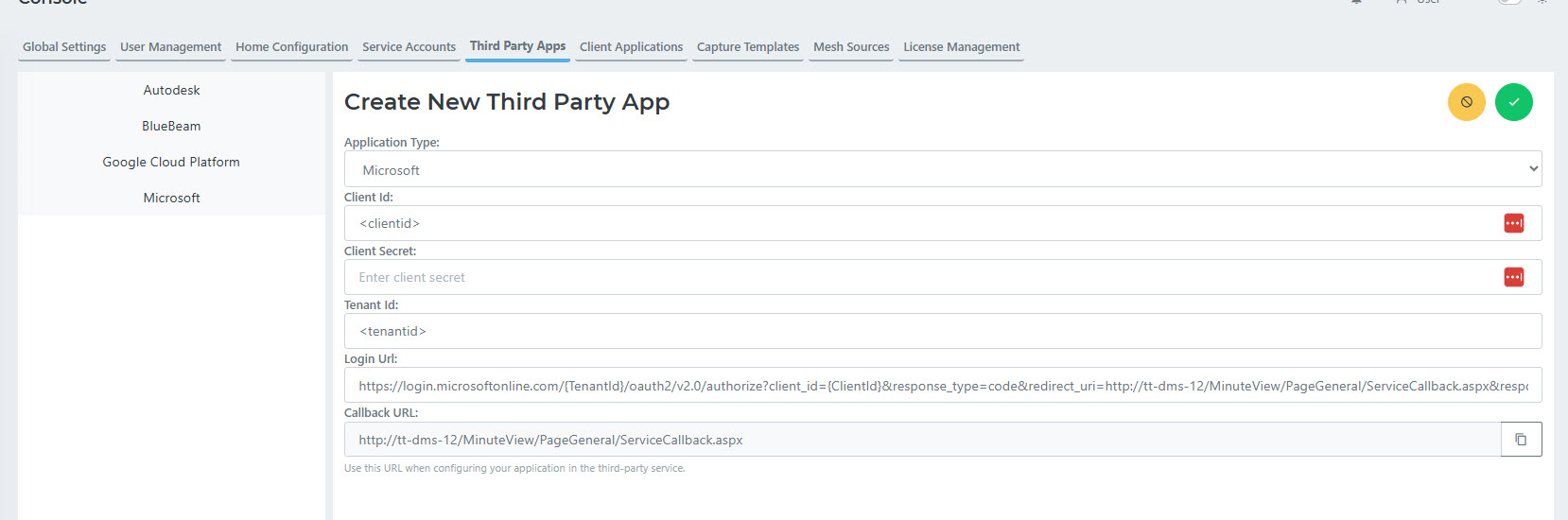
Now when you add a node to a workflow that requires this account, you will see a red icon for Microsoft. simply click the icon, it will ask you to sign in the first time, the next time it will be green and ready to use.
Try running a workflow node that uses Microsoft data. For example:
If it works, your setup is complete.