

Skip to content

Capture Inbox ​

Capture Inbox

Overview ​

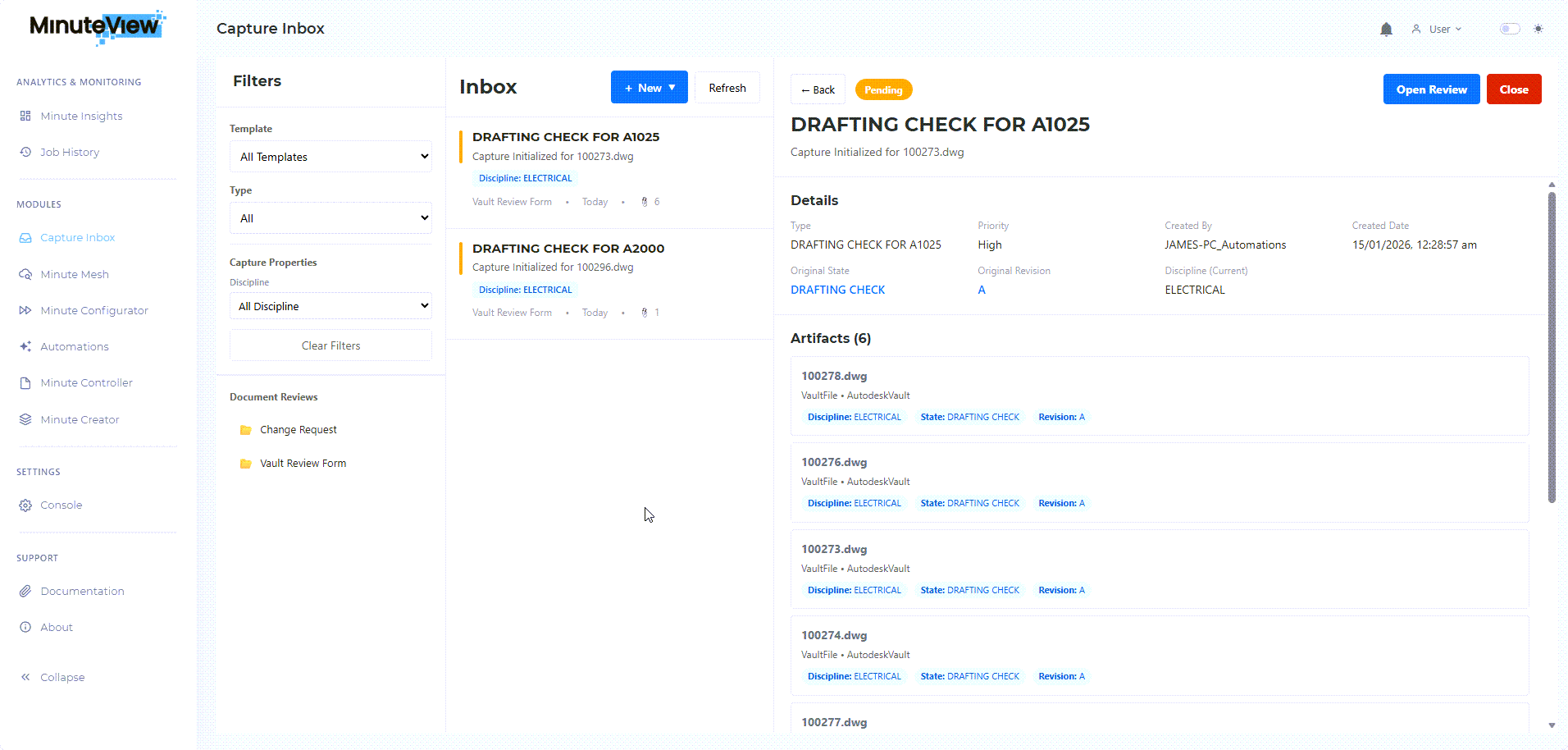
The Capture Inbox is your central hub for viewing and managing all captures that require your attention. It displays captures you have permission to access, organized for easy navigation and action.


Accessing the Inbox ​

Location ​

Access the Capture Inbox from:

  • MinuteView Console → Capture section
  • Direct URL provided by your administrator
  • Navigation menu in MinuteView

What You See ​

The inbox displays only captures you have permission to view, based on:

  • Your assigned roles
  • Template security settings
  • Capture states relevant to you

Inbox Layout ​

Main Components ​

Capture List:

  • Rows showing individual captures
  • Columns displaying key information
  • Sortable by clicking column headers

Filter Controls:

  • Template filter
  • Status filter
  • Custom field filters
  • Search box

Action Buttons:

  • Create new capture
  • Refresh list
  • Export/print options

Viewing Captures ​

Column Information ​

Default columns typically include:

  • Name/Title - Capture name
  • Template - Which template was used
  • Status - Current state (Open, Submitted, Approved, etc.)
  • Created By - Who created the capture
  • Created Date - When capture was created
  • Due Date - If configured
  • Custom Fields - Template-specific columns

Sorting ​

Click any column header to sort:

  • First click: Ascending order
  • Second click: Descending order
  • Third click: Reset to default

Row Selection ​

Click a row to:

  • View capture details
  • See full information
  • Access action buttons

Filtering Captures ​

By Template ​

Use template dropdown to show:

  • All templates
  • Specific template only
  • Multiple templates (if supported)

Use when: You want to focus on one type of capture


By Status ​

Filter by capture state:

  • Open
  • Under Review
  • Submitted
  • Approved
  • Rejected
  • Stale

Use when: You want to see captures in specific stages


By Custom Fields ​

If template has filterable fields:

  • Project filter
  • Priority filter
  • Date range filter
  • Other configured filters

Use when: You need specific captures based on metadata


Text search box searches across:

  • Capture names
  • Descriptions
  • Some metadata fields

Use when: You know partial name or identifier


Combining Filters ​

Multiple filters work together:

  • Template: "Engineering Review"
  • Status: "Open"
  • Priority: "High"
  • Result: High priority, open engineering reviews

Taking Action ​

Open Capture Details ​

Click on any capture row to view:

  • Full capture details
  • All metadata
  • Complete timeline
  • Associated artifacts

Create New Capture ​

Click Create New or New Capture button:

  1. Select template
  2. Fill in fields
  3. Add artifacts
  4. Submit

See Creating Captures for details.


Bulk Actions ​

Some implementations support bulk operations:

  • Select multiple captures
  • Apply action to all selected
  • Export selected to report

Check your MinuteView version for bulk support.


Inbox Indicators ​

Visual Indicators ​

Status Colors:

  • Green: Approved/Complete
  • Yellow: Pending/Open
  • Red: Rejected/Urgent
  • Gray: Stale/Inactive

Icons:

  • 📎 Has attachments
  • ⚠️ Urgent/High priority
  • 🕐 Approaching due date
  • ⏰ Overdue

Note: Visual indicators depend on configuration and environment version


Status Badges ​

Captures may display badges:

  • "New" - Recently created
  • "Stale" - Artifacts changed
  • "Urgent" - High priority
  • "Due Today" - Deadline approaching

Refresh and Updates ​

Auto-Refresh ​

Inbox may auto-refresh periodically:

  • Every few minutes
  • Shows new captures automatically
  • Updates status changes

Manual Refresh ​

Click Refresh button to:

  • Get latest capture data
  • See new captures immediately
  • Update status changes

Customizing Your Inbox ​

Column Configuration ​

Some implementations allow customizing:

  • Which columns to show
  • Column order
  • Column width

Check with administrator if customization is available.


Saved Filters ​

Some systems support saved filter configurations:

  • Save frequently-used filter combinations
  • Quick access to saved views
  • Personal vs shared saved filters

Inbox Preferences ​

May include preferences for:

  • Default sort order
  • Rows per page
  • Auto-refresh frequency
  • Notification settings

Common Inbox Tasks ​

Finding Your Captures ​

As Submitter:

  1. Filter by Status: "Submitted" or "Open"
  2. Filter by Creator: Your name (if available)
  3. View captures you created

As Reviewer:

  1. Filter by Status: "Open" or "Under Review"
  2. Filter by Template: Templates you review
  3. View captures needing your review

Monitoring Progress ​

Check status of captures you're tracking:

  1. Use search to find specific capture
  2. View status column
  3. Click to see timeline and details

Cleaning Up Old Captures ​

Review and handle completed captures:

  1. Filter by Status: "Approved", "Rejected", or "Submitted"
  2. Filter by Date: Older than X days
  3. Archive or export as needed

Notifications ​

Email Notifications ​

You may receive email when:

  • New capture assigned to you
  • Capture requires your review
  • Capture you submitted is approved/rejected
  • Capture becomes stale

Notification settings configured by administrator.


In-App Notifications ​

Inbox may show notification badges:

  • "3 new captures"
  • "5 captures need review"
  • "2 captures overdue"

Troubleshooting ​

Inbox is Empty ​

Possible reasons:

  • No captures currently assigned to you
  • Filters are too restrictive
  • Permission issues

Try:

  • Clear all filters
  • Check with administrator
  • Verify your role assignments

Capture Not Showing ​

Check:

  • Is capture in a status you're filtering out?
  • Do you have permission to view this capture?
  • Is capture stale and hidden?
  • Try refreshing inbox

Slow Performance ​

If inbox is slow:

  • Too many captures displayed - use filters
  • Network issues - check connection
  • Browser issues - clear cache, try different browser
  • Contact IT support

Tips for Efficient Inbox Use ​

Daily Routine ​

  1. Morning check - Review new captures
  2. Apply filters - Focus on your priorities
  3. Act promptly - Don't let captures pile up
  4. Use search - Find specific items quickly

Organization Strategies ​

  • Use status filters - Focus on "Open" items needing action
  • Sort by due date - Prioritize time-sensitive reviews
  • Group by template - Work on similar captures together
  • Save common filters - Quick access to frequent views

Best Practices ​

  • Check inbox regularly (daily or more)
  • Act on captures promptly to avoid staleness
  • Use clear, searchable names when creating captures
  • Keep filters simple for faster performance

Next Steps ​

From the inbox, you'll typically:

Tentech