

Search K
Appearance
MinuteView requires a valid license issued by Tentech to operate. The license controls which modules are available to your organisation, how many users can access the system, and the period for which the software is active.
Licenses are issued by Tentech through your reseller channel. To obtain a license:
.json) that is tied to your server's hardware fingerprint.You will receive your license file before or during your initial installation. Keep it in a safe location — you will need it if you ever need to reinstall or recover your server.
Your license is uploaded during the initial Application Setup Wizard. If you are setting up MinuteView for the first time, the wizard will guide you through this step.
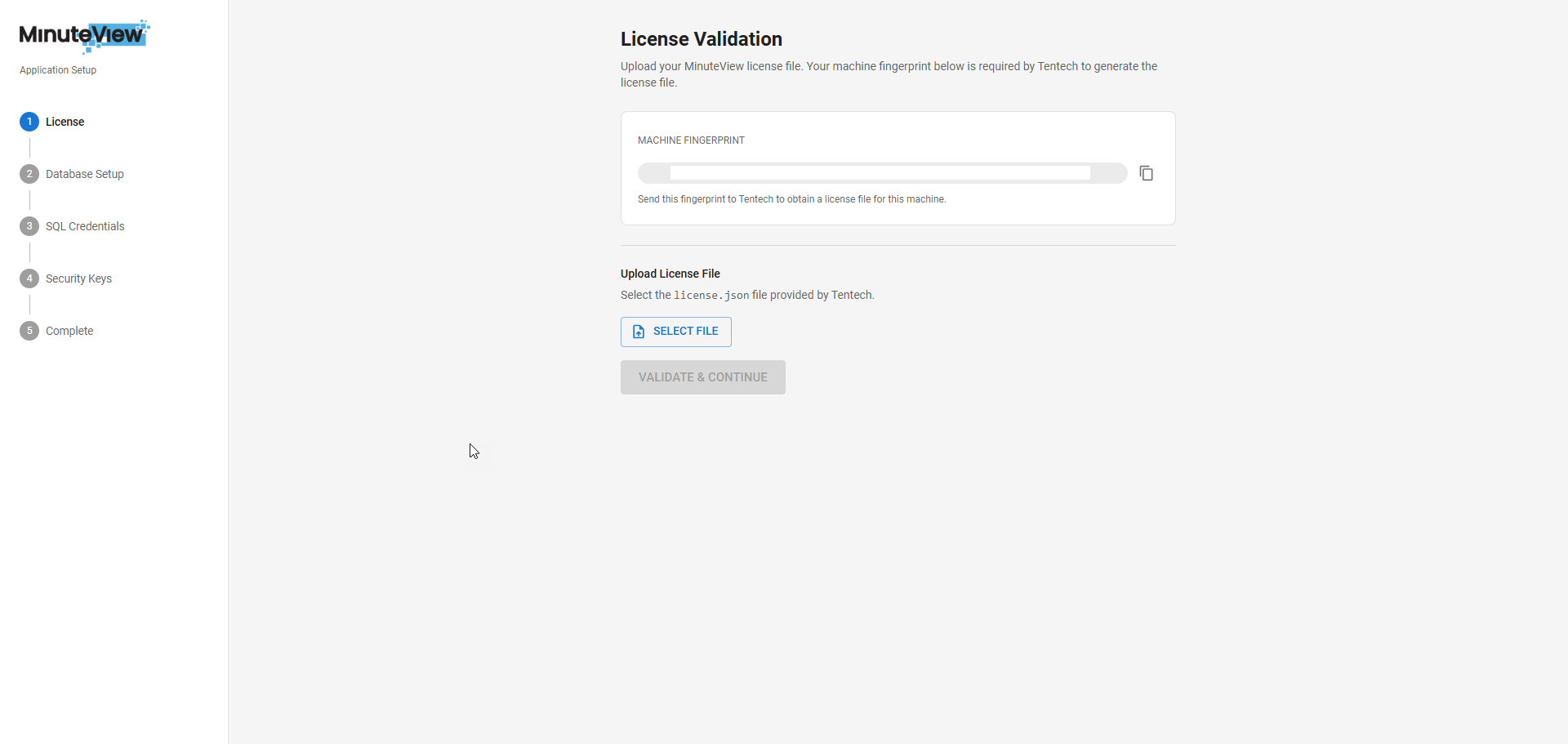
If you need to update or replace an existing license (for example after a renewal), go to Console → License Management and upload the new file.
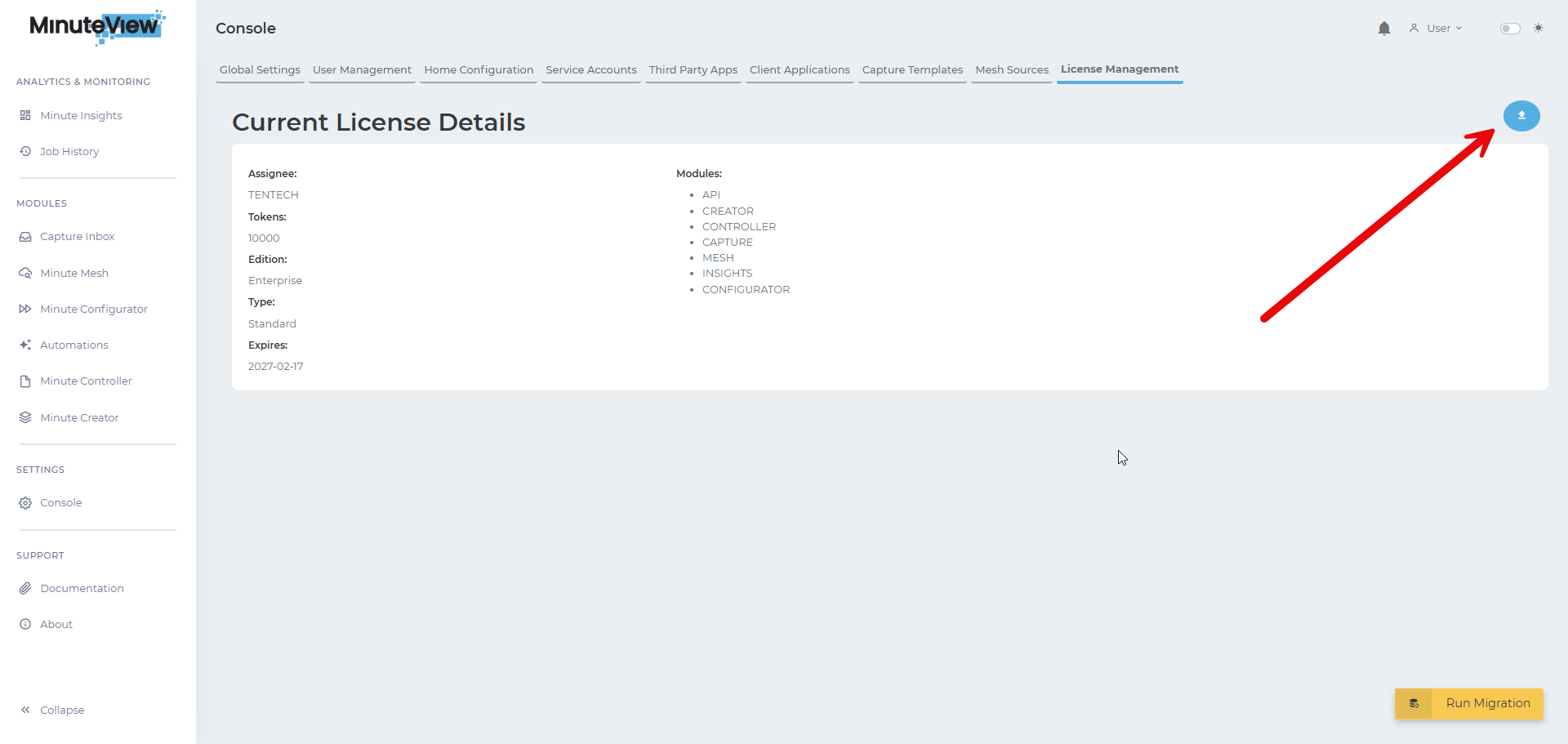
Your license file contains the following information:
| Field | Description |
|---|---|
| Customer Name | The organisation the license is issued to |
| Expiry Date | The date the license period ends |
| Licensed Modules | The MinuteView modules available to your organisation |
| Max Users | The maximum number of concurrent users (0 = unlimited) |
| Annual AI Tokens | Allocation for AI features such as Mesh (0 = unlimited) |
The modules included in your license determine what is available across the entire platform. All licensing is enforced centrally by MinuteView Server — every product that connects to it (Creator, Controller, Automations) is licensed through the server. If MinuteView Server is not running, no connected applications will function.
| Module Key | Product |
|---|---|
CREATOR | Minute Creator |
CONTROLLER | Minute Controller |
SEARCH | Minute Mesh (AI Search) |
CONFIGURATOR | Minute Configurator |
API | External API / client application access |
Modules not included in your license will not appear in the navigation and their functionality will be unavailable.
MinuteView monitors your license expiry and displays warnings in the application banner as the expiry date approaches.
  30 days        7 days       Expiry date      +60 days
  before         before
    │              │               │               │
────┼──────────────┼───────────────┼───────────────┼──────────▶
    │              │               │               │
  Yellow         Red            Grace           System
  warning        warning        period          locked
banner banner begins| Period | Behaviour |
|---|---|
| 30 days before expiry | Yellow warning banner appears on all pages |
| 7 days before expiry | Banner changes to red (urgent) |
| After expiry — up to 60 days | System continues to operate; banner shows license has expired |
| More than 60 days after expiry | System locks — all users redirected to a license error screen |
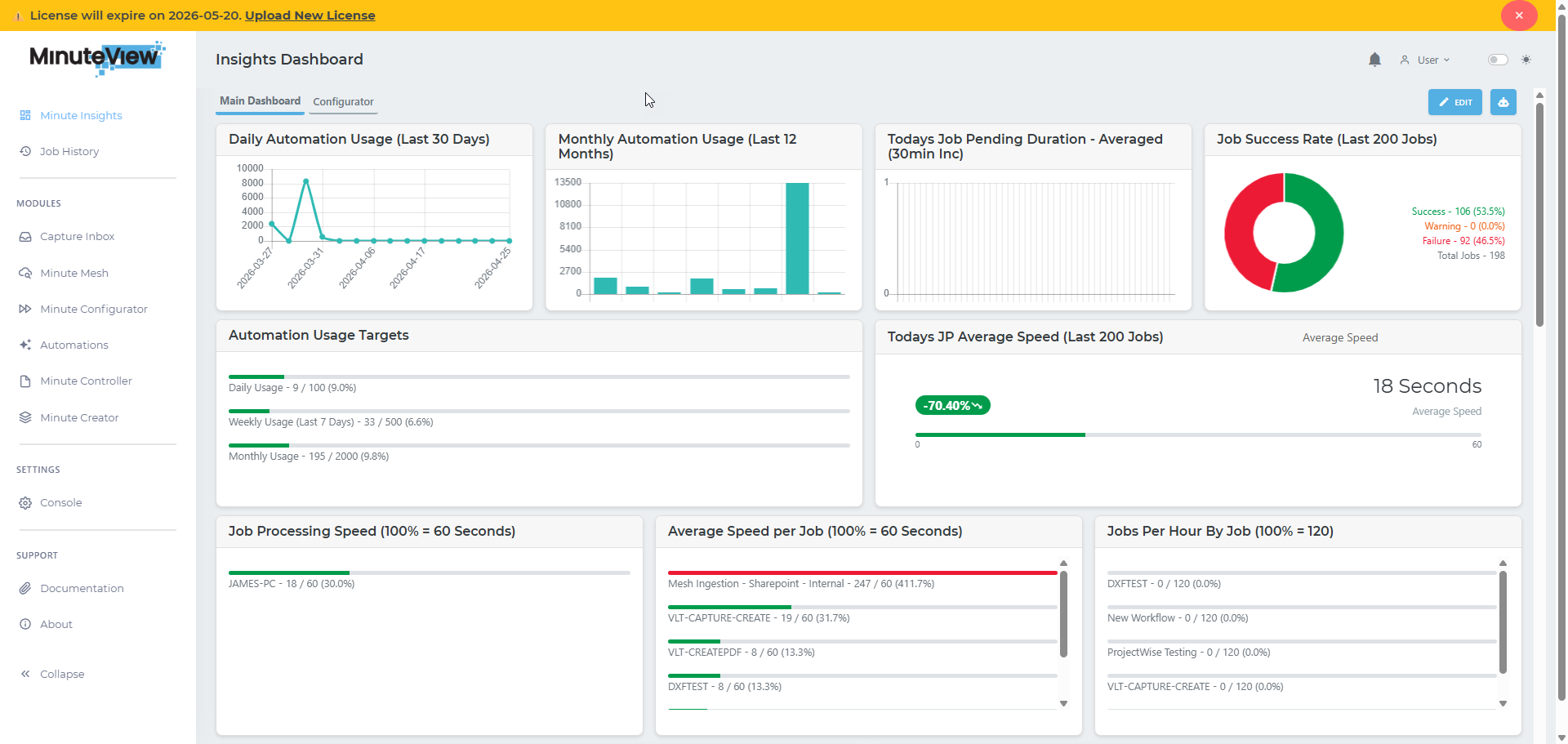
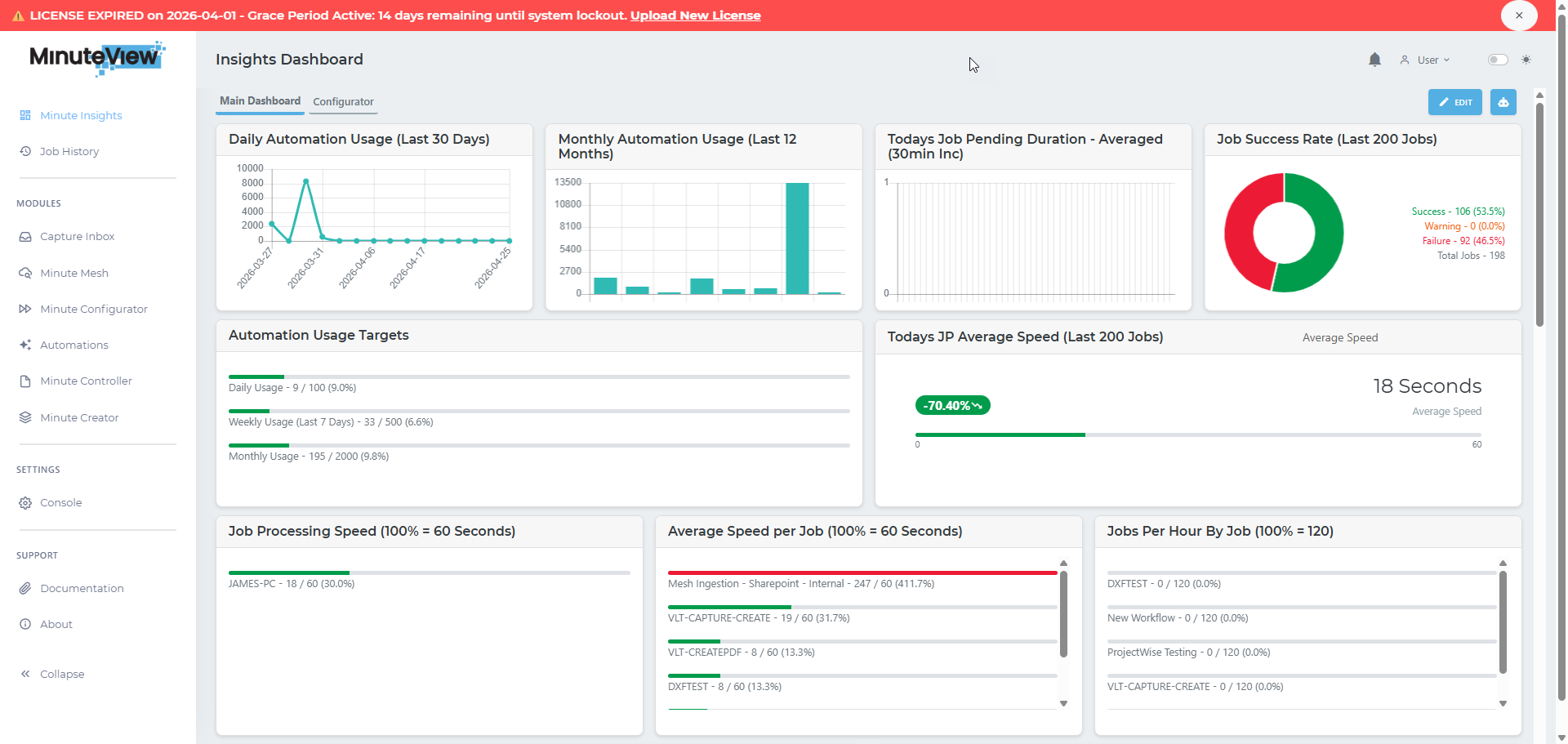
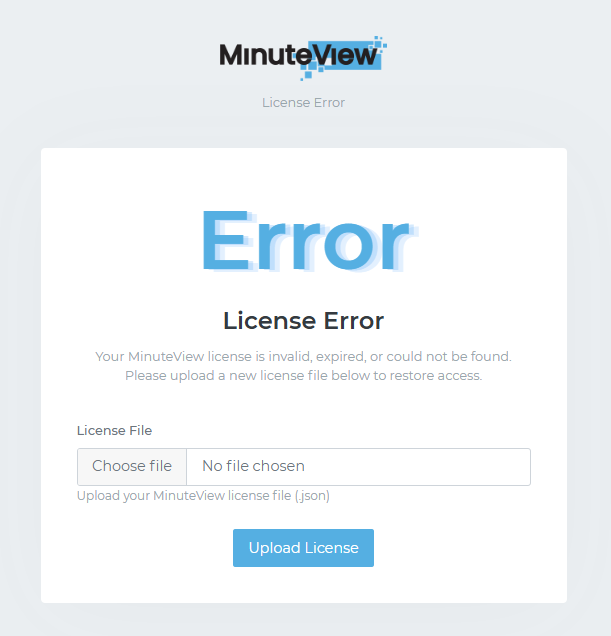
Once the 60-day grace period has elapsed, all users are locked out and redirected to a license error screen. From this screen, an administrator can upload a new license file to restore access.
This feature will be replaced in a future version
The hardware fingerprint grace period is a temporary mechanism. It will be superseded by a more robust licensing architecture in a future release of MinuteView.
Your license is tied to the hardware fingerprint of the server it was issued for. This grace period exists solely for disaster recovery — specifically, where you have had to rebuild MinuteView on replacement hardware with a different fingerprint.
When MinuteView detects a fingerprint mismatch, it automatically activates a 30-day disaster recovery grace period.
During this period:
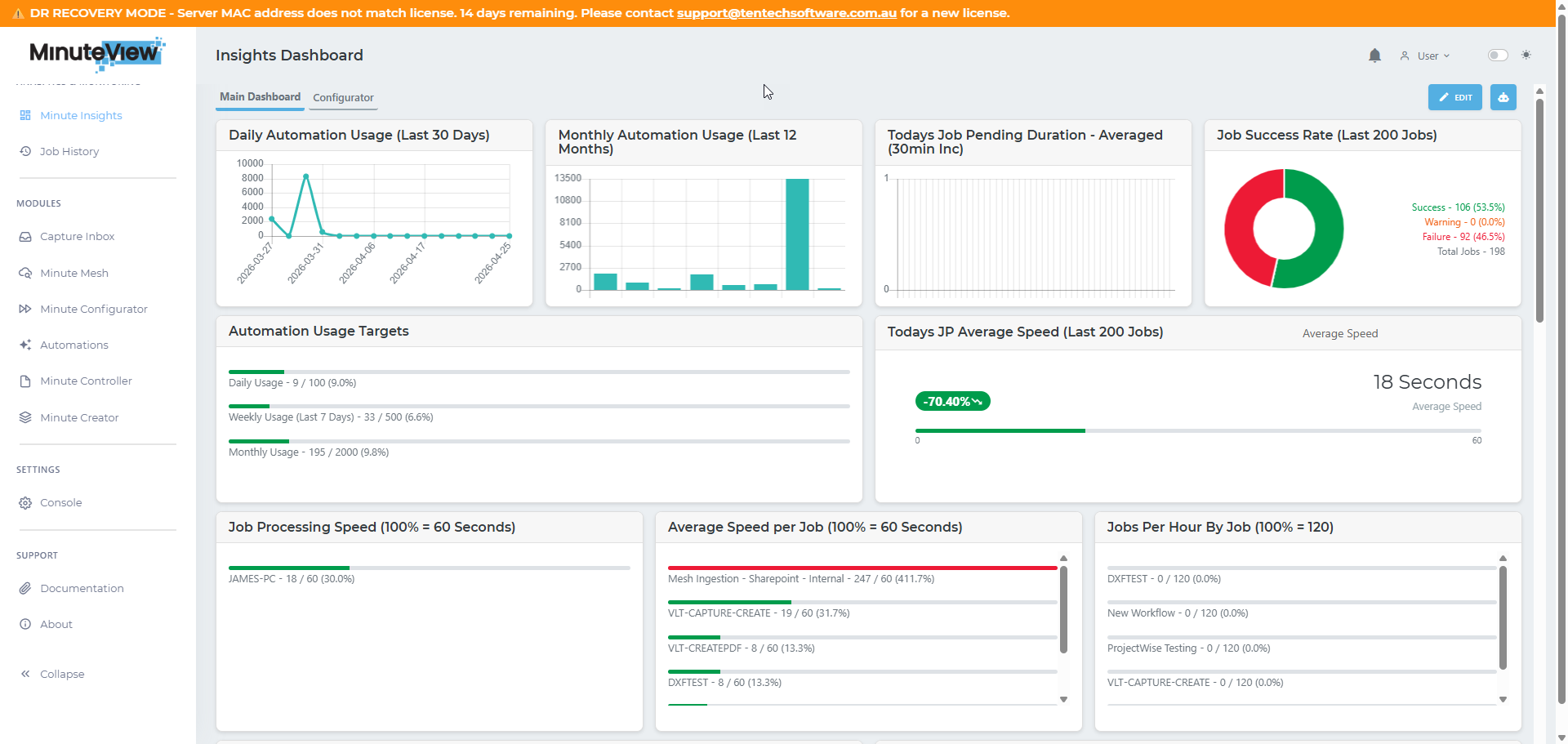
If the 30-day grace period expires without a new license being installed, the system will lock in the same way as a fully expired license. All connected applications — Creator, Controller, Automations — will stop functioning until a valid license is uploaded.
| Scenario | Grace Period | Action Required |
|---|---|---|
| License expired | 60 days | Renew your license through your reseller |
| Disaster recovery (hardware replaced) | 30 days | Contact Tentech to re-issue the license for the new hardware |
All MinuteView products are licensed through MinuteView Server. There is no separate licensing for individual products.
MinuteView Server  ← license installed and enforced here
       │
       ├── Minute Creator
       ├── Minute Controller
       ├── Minute Automations
       ├── Minute Mesh
       ├── Minute Capture
       └── Minute Configurator
MinuteView Server must be running and reachable for any connected product to function. If the server's license expires or the server is offline, all products will cease to operate.
Contact your Tentech reseller before your expiry date to arrange a renewal. Once you receive the updated serial number or license file, apply it through Console → License Management using the steps below. The updated license takes effect immediately — no restart is required.
Navigate to Console → License Management to view your current license status and perform all licensing actions.
The top of the page shows a summary of your current license across four cards:
| Card | What it shows |
|---|---|
| Assignee | The organisation the license is issued to |
| Expires | License expiry date, with days remaining or overdue count |
| Users | Current active user count vs licensed maximum (or "unlimited") |
| Automations / Month | Monthly automation token allocation |
Below the summary cards, two detail panels provide further information:
If your server has outbound internet access, you can activate or renew using a serial number provided by Tentech.
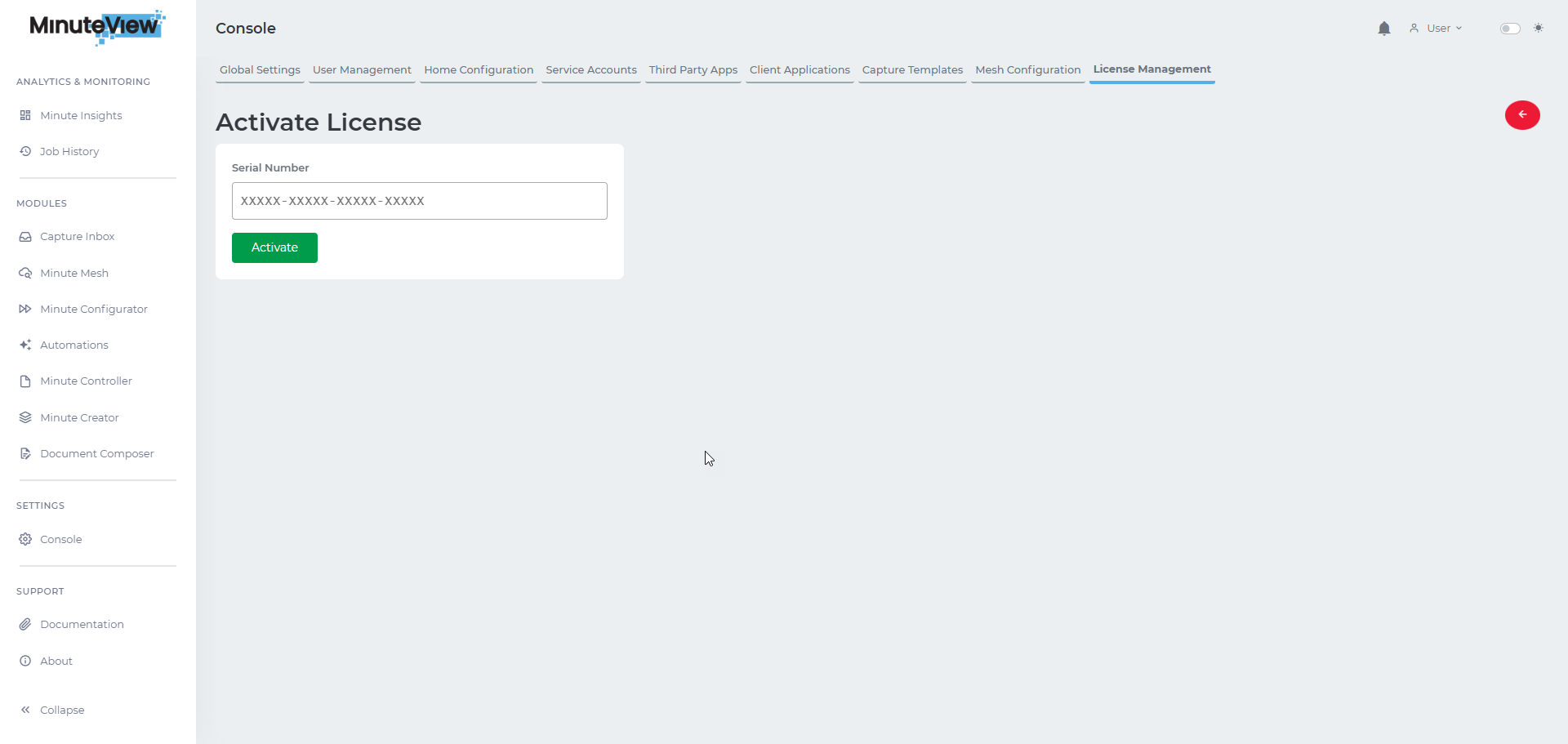
XXXXX-XXXXX-XXXXX-XXXXXMinuteView Server contacts licensing.tentechportal.com, validates the serial number, and binds the license to this machine's hardware fingerprint. The license is applied immediately with no restart required.
Renewals
The same serial number process is used for renewals. When Tentech issues a renewed serial number, activate it here to extend your expiry date.
If your server does not have outbound internet access, Tentech can provide a license file (.json) directly.
.json license file provided by TentechWhen to use this method
Use Import License File if:
MinuteView sends basic, anonymised usage data to licensing.tentechportal.com. This is used by Tentech to monitor license compliance and understand how the product is being used.
| Data type | Contents | Frequency |
|---|---|---|
| License heartbeat | License status, expiry date, licensed features, server version | Every 6 hours |
| Usage snapshot | Active user count (last 30 days), total registered users, automation run count, job completion/failure counts for the current month | Every 6 hours |
| Feature events | Which application pages and features are visited (page names only) | Flushed every 5 minutes |
No personal, identifiable, or document data is ever transmitted. No user names, file names, document contents, or any client-specific business data are included in telemetry.
If MinuteView cannot reach licensing.tentechportal.com, telemetry is cached locally rather than discarded:
C:\ProgramData\Tentech\MinuteView\TelemetryCache\The cache stores up to 90 days of event summaries and 200 low-volume items (heartbeats and snapshots). Once connectivity is restored, cached data is forwarded automatically.
If the server is permanently offline or behind a strict firewall that cannot be adjusted, the Telemetry Cache panel in License Management provides two manual options:
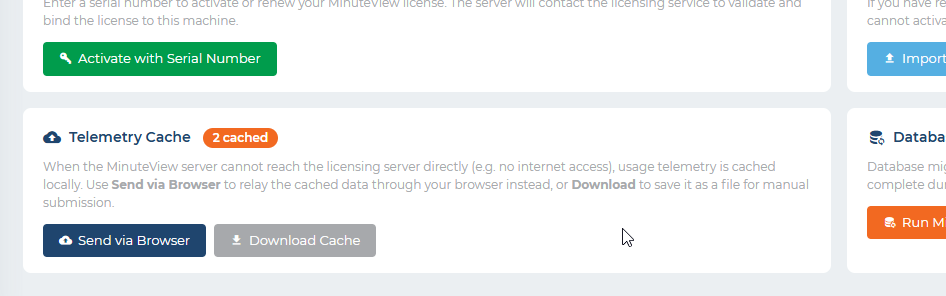
licensing.tentechportal.com. Use this if the server itself cannot reach the internet but the machine you're browsing from can.A badge on the panel heading shows how many pending items are waiting to be sent.
MinuteView applies database schema updates automatically whenever a new version is installed. No manual steps are required under normal circumstances.
If a migration did not complete during an upgrade, the Database Migration panel in Console → License Management provides a Run Migration Manually button to re-trigger it.
Use with caution
Only use the manual migration trigger if Tentech support has advised it, or if you are certain a migration was interrupted mid-upgrade. Running it against an already-migrated database is safe but unnecessary.